Install Key Drupal Modules – Part 2

Follow the same steps you did in Part 1 for the other modules and install the following modules:

Remember to pick the 7.x releases that end in gz and to not use Development releases.

Advanced Help

http://drupal.org/project/advanced_help

Tokens

Tokens are small bits of text that can be placed into larger documents via simple placeholders, like %site-name or [user]. They will be used by other modules.

http://drupal.org/project/token 

Path Auto

Drupal stores content in nodes.  Path Auto allows you to use URL aliases like/category/my-node-title instead of /node/123.

http://drupal.org/project/pathauto

When you enable Pathauto after installing, if you see Token is not active, activate it as well.

Field Types

http://drupal.org/project/references

Enable Node Reference, References and User Reference.

http://drupal.org/project/field_group

http://drupal.org/project/link

The links module allows you to add links to any content type you add later.  This is a key module for adding links to content and other sites.

Media

http://drupal.org/project/media

You may get the prompt “You must enable the File entity module to install Media.  Would you like to continue with the above?”

Click the Continue button.


Text Editor

http://drupal.org/project/bueditor 

Allows some basic text editing capability with buttons in the content text boxes (where you enter content).

Groups

http://drupal.org/project/entity

http://drupal.org/project/features

http://drupal.org/project/panels

Organic Groups (called OG) is a key module.

http://drupal.org/project/og 

If you are prompted with “You must enable the Page manager, Views content panes modules to install OG example.  Would you like to continue with the above?”

Click the Continue button to install OG.

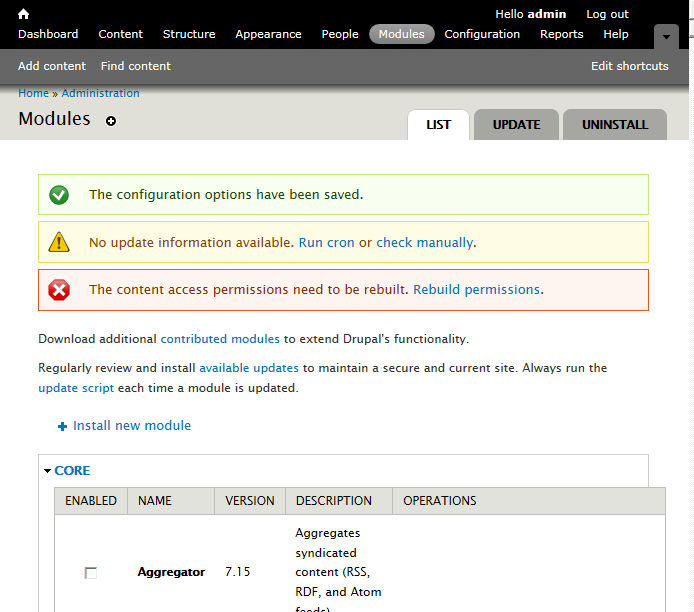
If you are prompted to rebuild the content access permissions, click the Rebuild permissions link to do so (see image below) then when prompted again , click the Rebuild permissions button to confirm you want to do so.


Now on to Date module – Install Key Drupal Modules – Part 3

Posted in Uncategorized | Leave a comment

How to Set Up Your Church or Group Site Using HostGator and Drupal – Index

This is a work in progress from notes I took when setting up my first Church site with Drupal.

Contents

How to Set Up a Professional Church or Group Web Presence and Website

What is your Web site for?

How to install Drupal from HostGator cPanel

Defining your site map and navigation

Drupal Setup – Making the site yours

Install Key Drupal Modules – Part 1

Install Key Drupal Modules – Part 2

Install Key Drupal Modules – Part 3 – Dates

Install Key Drupal Modules – Part 4: Calendar and Events

Event Views


Posted in Uncategorized | Leave a comment

How to install Drupal from HostGator cPanel

Install Drupal core 7.x

HostGator has good Drupal hosting capability.
Here are the step by step instructions for installing Drupal from cPanel (the main dashboard used by HostGator).

The menu to all cool features at HostGator and many other hosted sites is Cpanel.  Login to your cPanel account for HostGator.

Login to cPanel
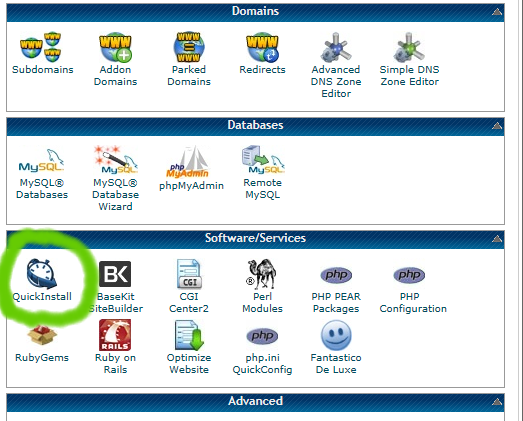
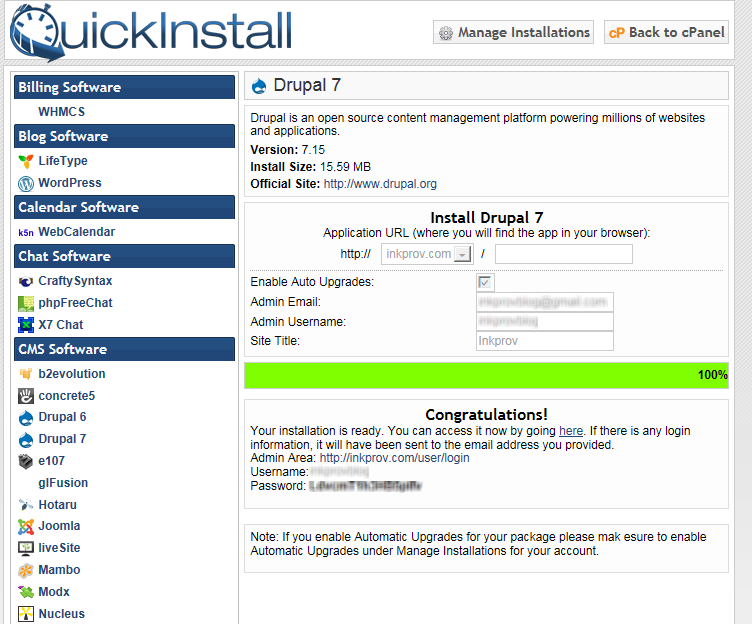
Select Quick Install

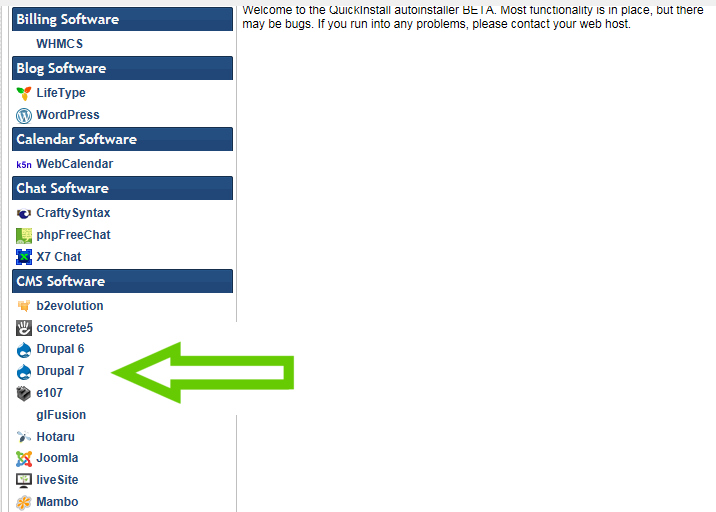
Then select Drupal 7

Now decide where you want the Drupal site to go – the landing page of your Drupal site.

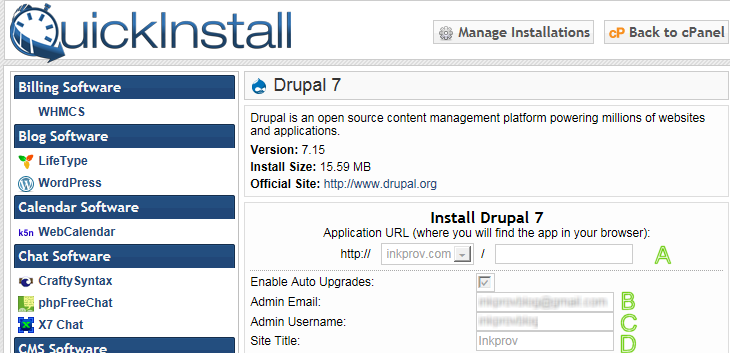
If you want your entire site to be based on Drupal (your home page of yourdomain.org will be a Drupal page) then leave the path field below (A) blank.  This is what I recommend.

If you want to have a seperate landing page that you design from scratch that will then point to your Drupal site (a sub directory of your main site) then put in a path name (like home) of where you want your Drupal landing page to be.

In the example below we want the home page to be Drupal so we leave field A blank.

For Admin email, enter your main email address.  If you have an admin email setup for your site domain already with your domain name (like admin@mydomain.com), use that one but any valid email will do.

For D – enter the name you want to show up as the page / site title when people navigate to your site.

Once set continue with the install.


If all goes well you should see a page similar to the one here:

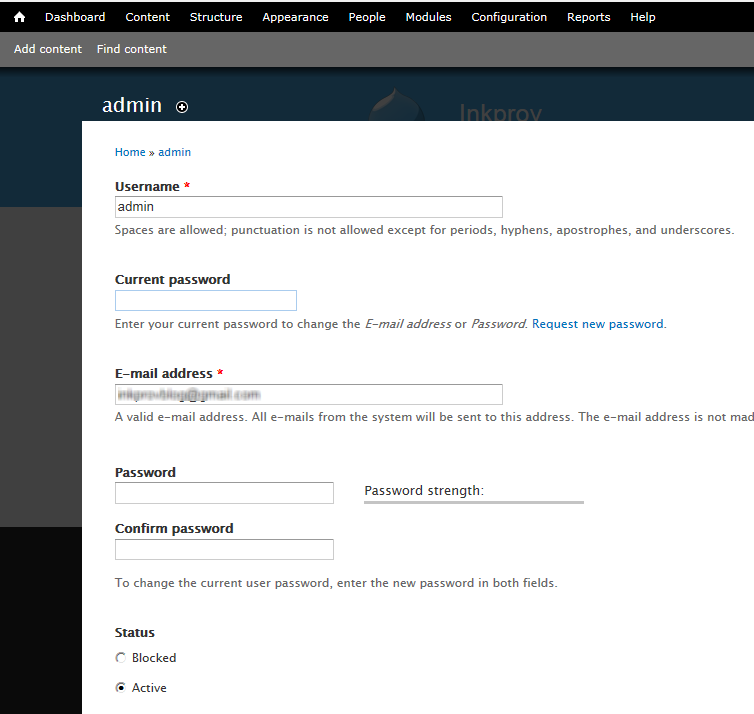
Copy the admin password and make sure you save it in a safe place. Follow the link, and login using the password you copied.  Once you are in I would change the admin password to one you remember that is still a strong password.

If you don’t see an Edit tab under your login name, click on the Edit tab of your account or click on your admin name next to the Hello message at the top of the page just to the left of the Log out link.

Click on Edit then in the form provided past in your current password in the Current password field and then set to a new one by entering it twice as directed in the from below.

Now that Drupal is installed, you are now ready for your first design step – Defining your site map and navigation.


Posted in Uncategorized | Leave a comment

How to fix Drupal error “the directory sites/default/files does not exist” for HostGator Drupal sites.

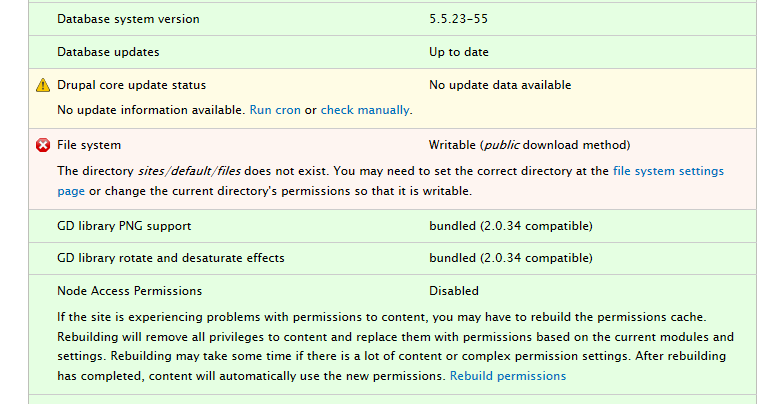
If you run the Drupal status report and see the following error:

The directory sites/default/files does not exist

It means the directory in your HostGator (or other hosting) does not have the correct permissions to allow Drupal to allow access to the files.

First check your status report to see if you have this error:

If the site is experiencing problems with permissions to content, you may have to rebuild the permissions cache. Rebuilding will remove all privileges to content and replace them with permissions based on the current modules and settings. Rebuilding may take some time if there is a lot of content or complex permission settings. After rebuilding has completed, content will automatically use the new permissions. Rebuild permissions

If this is not fixed before you install modules you will run into trouble.

I have seen this more than once on new Drupal sites with HostGator, not sure why.

Here is what I did to fix:

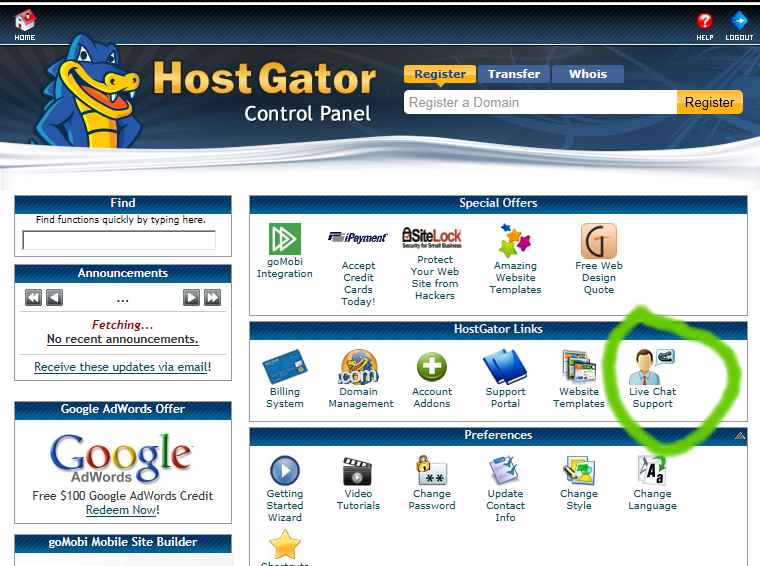
Got on chat with HostGator by logging into cPanel and clicking the chat icon:

There is a script that support can run on the server internally to set the permissions to the default settings – ask them to run the script.

Or you can manually edit permissions in file manager using this hostgator link:

https://support.hostgator.com/articles/cpanel/how-to-change-permissions-chmod-of-a-file


Posted in Uncategorized | Leave a comment

Install Key Drupal Modules – Part 3

Date Module

http://drupal.org/project/date

(At time of this article the current version of Date was date-7.x-2.6.tar.gz)

After installing the Date module activate all the Date/Time features you can. Some like Date Context and Date Migration cannot be activated because they are missing additional modules but you can ignore these for now. Continue past them and activate all you can down to the Date Tools and Date Views.

Day of Week and Time Zone

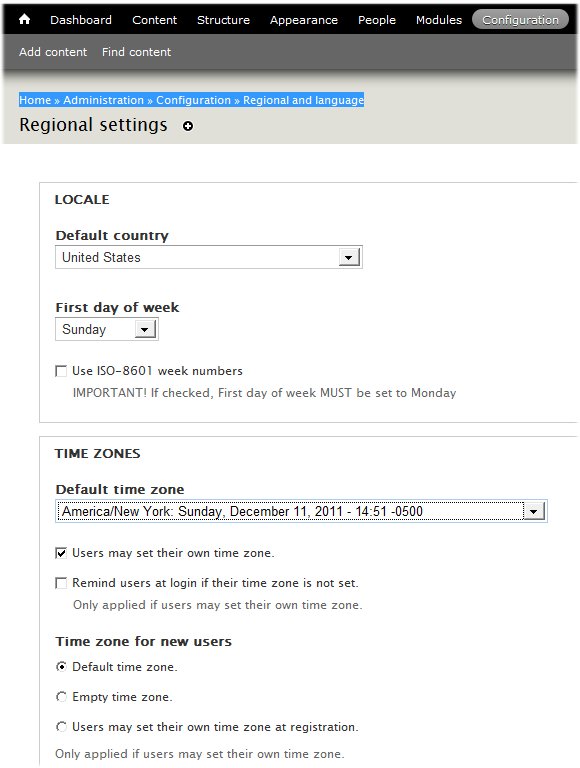
Next you will need to set up the site’s first day of the week, system date formats and time zone. The Date API requires that you set up the site first day of week settings to function correctly.  To do this, from the top bar of admin menu:

Configuration » Regional and language

Click on Regional settings

Set Time Zone

Set your Default time zone using the drop down and then click on Save configuration.

Next got to Configuration » Regional and language

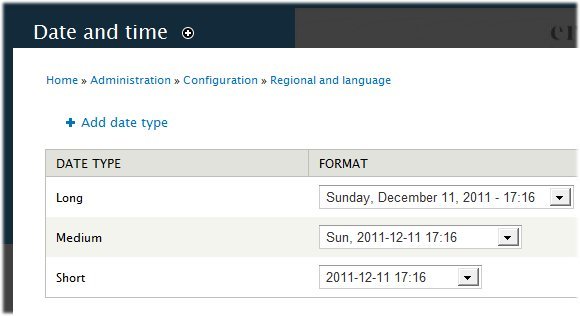
Click on Date and time

And set up the system date formats for the date module to function correctly.


Set Date Display Format – Default 24 hour

Note the default is 24 hour format – If you are working in the morning this may not be obvious.

You will want to set this to a non 24 clock as most visitors will be used to the normal 12 hour clock.

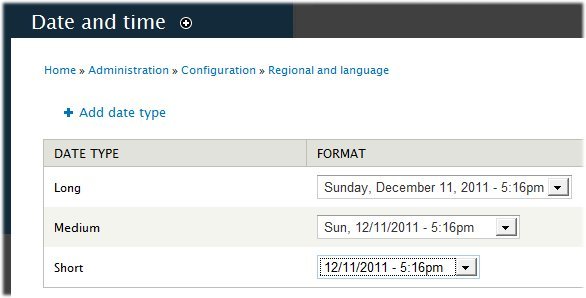
Also watch to set the date according to your region – MM/DD/YYYY for the US for example.

If you are not careful you might set the date thinking it is mm/dd when it is really dd/mm.  Below we are setting for Sunday Dec 11, 2011 at 5:16pm

Figure 12 Set Date Display Format to 12 hour

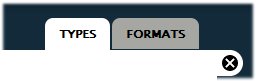
You have the option of creating your own custom date formats – on the right of the form you will notice tabs for Types (where we are now) and Formats (where you can define your own).  We will skip custom.

Date Formats

More Modules

Install Signup module for options for managing and contacting event participants.   It does not seem to be complete for Drupal 7.x so if the only version available is dev I would skip it.

http://drupal.org/project/signup (Hold off on this one until non Dev. version ready).

Install Flags for tagging events and other notes.
http://drupal.org/project/flag

Install Profile2 module to add registration questions to new user forms – if you don’t intend to do this later you can skip this module.  Activate under “Other” in module list.
http://drupal.org/project/profile2

Noggin for better page headers.
http://drupal.org/project/noggin

Menu Icons
http://drupal.org/project/menu_icons – This one in Beta (as of Sept 2012) so you can skip for later if you want to but listed here for reference.

Next step – Install Key Drupal Modules – Part 4: Calendar and Events

Posted in Uncategorized | Leave a comment

Install Key Drupal Modules – Part 1

How to Install a Drupal Module

You need to login as admin to your drupal site

(the admin and password would have been sent to you after you installed Drupal with your hosting company).

Open a new window (so you still have your Drupal Admin window available) and navigate to

http://drupal.org/project/variablecheck
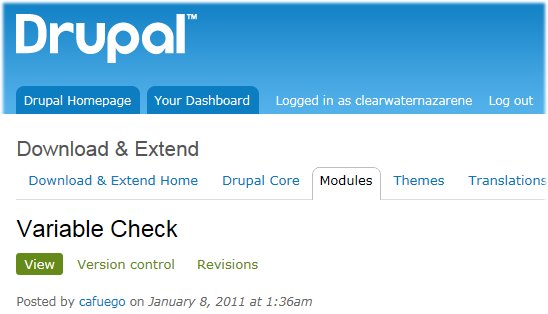
Figure 1

Right Click on the GZ file (that starts with 7.x to match your version of Drupal).
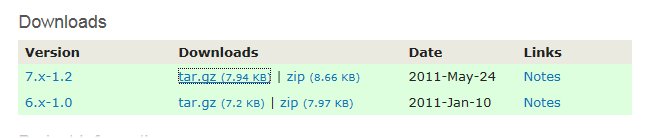
Figure 2

Important Note:
Don’t install Alpha versions of modules – I thought I had to pick the newest for Drupal 7 – that was a mistake – especially with Calendar / Date combinations.

Copy the URL / Shortcut

Then from your Drupal site

Click on Modules from the Admin top level menu to get to the Modules page

Then click on Install new module

Click in the Install from a URL text box error and paste in the URL you copied from the Downloads page.
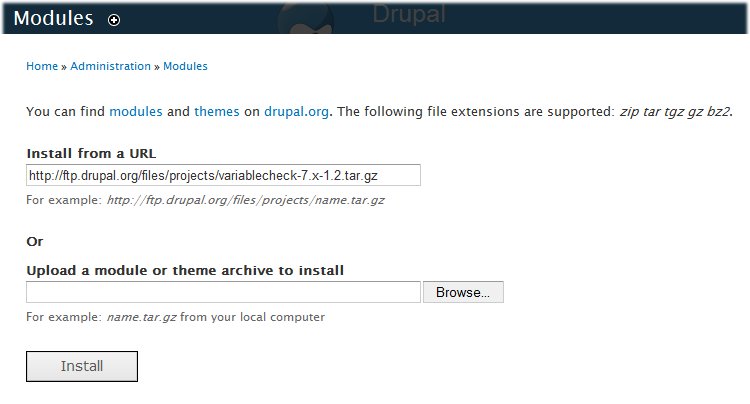
 

Figure 3 Module: Variable Check

After you click on the Install you will be promoted to enable the newly installed module.
Click on the Enable newly added modules link.

If it does not take you to the modules page (listing installed modules), click on Modules from the Admin top level menu to get to the Modules page.

From the Modules page, scroll down until you see the Variables check box, and click it to enable the new module Variable Check.
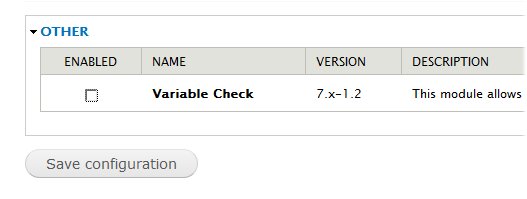
 

Figure 4

Click Save configuration.

Now that it is installed – where do you find it?

In this case the module appears under the reports page called Check System Variables
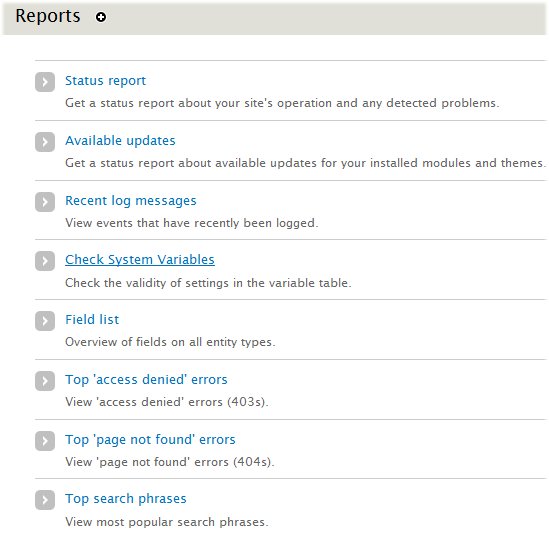
Figure 5 Site Reports

Tip for checking your work – Use multiple browsers
Have three browsers open – one as admin, one as a normal member and one as a visitor not logged in. I use Internet Explorer, Firefox and Google Chrome.

For example, to view the site like a visitor, bring up a different browser (Chrome from google, or Mozilla FireFox) and click on links from that browser after making changes from the browser where you are logged in as the site administrator.

Check for system errors after installing Modules

It is a good idea to track your progress after each installation to make sure no error messages are showing up.

Do this by having one browser open with your site home page but where you are not logged in to see what a first time visitor will see.

Each time you install a module I click on the site logo to reload the home page to make sure it comes up cleanly.  We will install the Date module as part of the Event type setup in the next section.

It is also a good idea to check the system reports.

Click on Reports from the top menu navigation (same as Home » Administration » Reports)

Then run the Status report by clicking on Status report.

Look through the Status report page to see if any key errors are highlighted.

The module you just installed will help in finding errors with later modules. For example  – After installing a module you may get this pesky error (numbers and path vary).

Notice: unserialize() [function.unserialize]: Error at offset x of y bytes in variable_initialize() (line 921 of /home/public_html/includes/bootstrap.inc).

To fix the unserialized error you would use the module you just installed (Check Variables) to locate the offending data that caused the serialize/unserialize issue.

Views

Time to install our next module.

Open a new window and navigate to

http://drupal.org/project/views

Right click on the .gz file that starts with 7.x (to match your Drupal 7 install).

Copy the URL / Shortcut

Then from your Drupal site

Click on Modules from the Admin top level menu to get to the Modules page

Then click on Install new module

Click in the Install from a URL text box error and paste in the URL you copied from the Downloads page.

After you click on the Install you will be promoted to enable the newly installed module.
Click on the Enable newly added modules link.

If it does not take you to the modules page (listing installed modules), click on Modules from the Admin top level menu to get to the Modules page.

From the Modules page, scroll down until you see the module you just installed (Views and Views UI) check box, and click it to enable the new module Variable Check.

In this case it says Ctools is missing.

This may happen with other modules, so always check to see if you have all the modules needed to run the module you just installed.

So in this case we can not activate views until we install Ctools so we will do that now.

CTools (Chaos tools)

Follow the same steps you did above for Views to install CTools – remember to pick the 7.x release that end in gz and to not use Development releases.

http://drupal.org/project/ctools

Now activate Chaos tools and Views and Views UI and then click the Save configuration button.

Next – Install Key Drupal Modules – Part 2

 

Posted in Uncategorized | Leave a comment

Drupal Setup

Make the home page look like yours

Change the Name and Logo of your site.

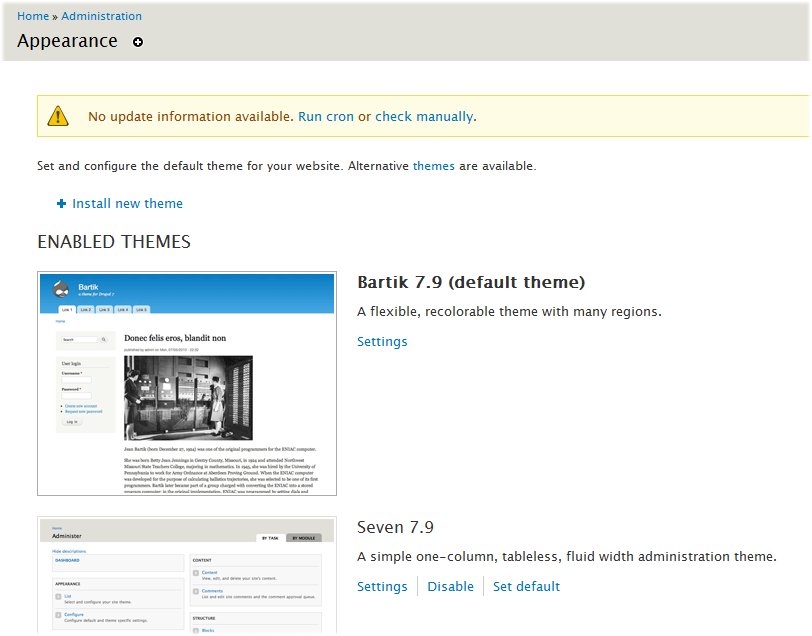
Click on Appearance

Figure 1 – Site Settings

Click on Settings next to Bartrk.

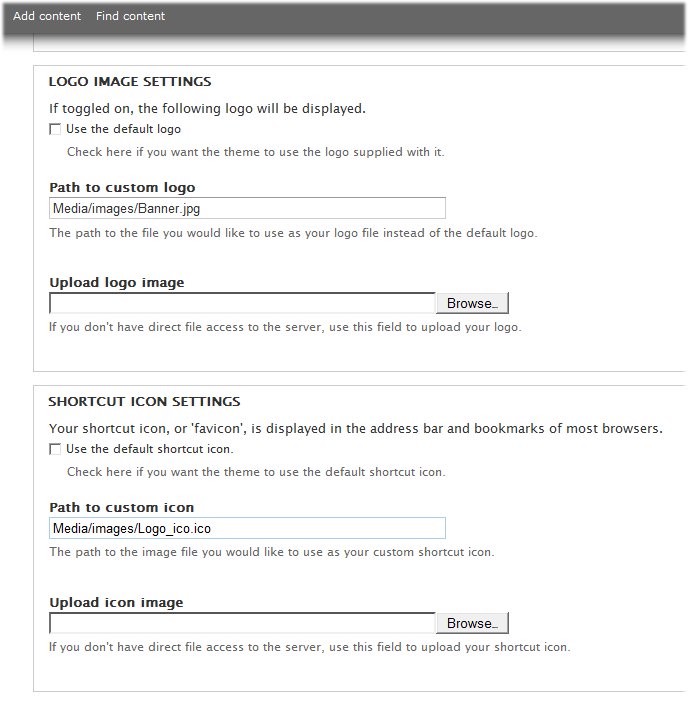
Un-check the check box next to “Use the default logo” to allow you to set your own logo image.

Click on the Browse button net to Upload logo image and select your own logo.

Figure 2 Set Site Logo

Upload the logo image you want to use.  Here is an example logo image that is 960 X120:

Figure 3 – Sample Logo Banner

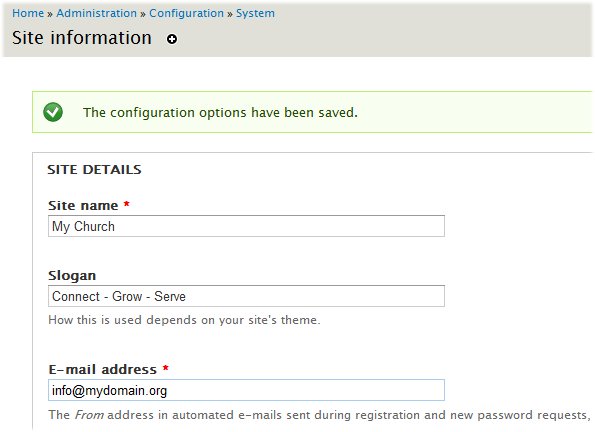
Change the Name, Slogan and Email address of your site

Under Configuration > System click on Site Information

Enter the Site name and slogan – these will appear on the top right next to your logo.

Also enter the email that you want site messages to come from – for example info@mydomain.com

Click Save configuration

Figure 4 – Set Site Name Slogan and Site Email Address

Turn off the powered by Drupal Block

Click on Structure > block

Find the powered by Drupal and change the drop down from Footer to None.

Click Save blocks button at the bottom of the page.

Create Welcome Block for Front Page.

Click on Structure > Blocks then Add Block

Block Title

Put in a title such as Welcome

Block description

Could be “Block: Church Welcome”

Block Body:

Enter your welcome paragraph that will be at the top of your home page.

For example:
Welcome to our Church site. Our people come from various walks of life to discover together what it means to be fully devoted followers of Christ. 

For Pages select the radio button for “Only the listed pages”

In text box put <front>

This will cause this block to only be displayed on the home or front page.

Click the Save block button to save your work.

Next go to Structure > Blocks (click on Structure then Blocks) and find the block you just created, i.e. Block: Church Welcome.  It will be listed int he Disabled section of the block list because we have not assigned it a region yet.

In the drop down to the right of your new block, select Sidebar second.  This will put your welcome on the right side of your home page.’

Click Save blocks to save your work then check out the home page to see how it looks. Click on the House (Home) icon on the top left of your menu, or from a different browser where you are not logged in, go to your home page.

Add another Admin account for backup

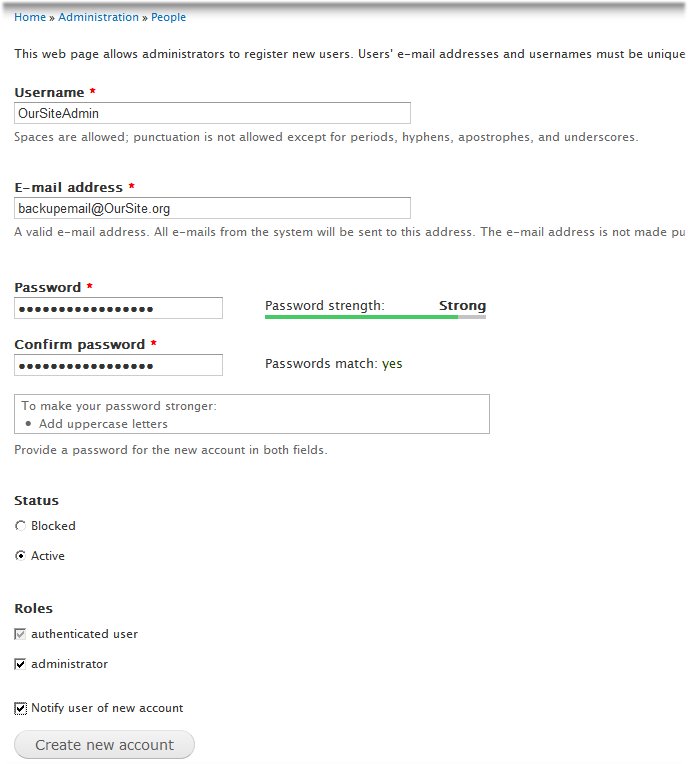
It is a good idea to add another admin with a different name and email in case you have issues with your main ID.

Click on People to get to Home >> Administration >> People

Click Add User

Fill in using example below. Be sure and check the “administrator” check box near the bottom of the page and click the Create new account button.

Figure 5 – Add Extra Admin Account


Now time to install some key modules

Posted in Uncategorized | Leave a comment

Site map and Navigation

Step 1 – Build the foundation and rooms – Site map and Navigation

In the same way you design a house, for a web site we want to lay down the foundations for each room and once the structure and foundation is in place the finishers come in with their tools and change the rough structure to a finished beautiful room and house.   We will create all the pages (foundation) and install all the tools (like Calendar and event management) in our first pass.

Step 2 – Add the finishing touches and polish

Once all of this is in place with basic place holders you can then bring in more help and have each person work on their area of the site to finish it correctly.

At this point Drupal is installed and the basic foundation is ready.

It is now time to to begin making the site yours.

< Back to previous page 

Posted in Uncategorized | Leave a comment

What is your Web site for?

Online Presence not just a Web Site

Build and Run an Online Presence – not just a web site

Street Sign or Destination

Is your web site a basic traffic sign for people to find your building or a destination for your members and people in need?

Communication Plan

Do you want to use the site to keep in contact with your members and followers?

Is it two way?

Media

Videos, Podcast, photos, Sermons, Blogs, Forums, Resources?

Groups / Community Plan

Small groups are key – do you want to set up groups?

////

What Departments do you need?

Worship

Missions

About us

Contact

Links

Blogs

Sermons

Events

Venues / Places

Site Administration and capability

Admin team
Section Admins
Database capability
Membership List / Family list
Giving / On Line Donations


Lets get started … Install Drupal by following the instructions on:
How to install Drupal from HostGator.

< Previous page

Posted in Uncategorized | Leave a comment

How to Set Up a Professional Church or Group Web Presence and Website

Good to Great

We will show you how to have all the key capability needed for a professional site.  The foundation will be solid.  Navigation, Event and Calendar tracking, Venues, Notifications, Blogs, Media / Video, Links and User Accounts with key Social presence for Facebook and YouTube.

To put the finishing touches on this will require professional level talent  — We will have all the foundation and “rooms” of your site setup with a basic “paint job”.  You will need to get people in your group who know how to write and lay out great pictures to fill in the ‘content’ or rooms of your site.

To go from good to great will require some professional level design – don’t let someone ‘try’ to design a good page – get people in your group that are very good at this or call in favors from experts you may know.

We will cover how to Publish –

Registration on other sites

Google places
Twitter
Facebook
YouTube Channel
Chamber of commerce
Church Type Main web site
Google Ad Words to advertise
Cross Links – as many as you can find

Where to find Images

From Church main site
Images Sources
iStock
GettyImages
DreamTime

Next: What is your web site for?

Posted in Uncategorized | Leave a comment