The Island Language

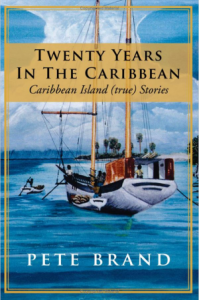
CoverX300_TwentyYearsInTheCaribbean_CaribbeanIslandStoriesWe wrote to our new friends, Delia and Allandale Winston, saying that we had shipped a lot of household furnishings, tools, and a couple of vehicles from Florida to Dominica.

Upon arrival we began the familiarization with the local West Indian English accent and idiom, and the islanders’ preferred language; Patois, or Creole. Not having a foundation in French we could not understand the Creole, but we knew that if we kept at it we would understand the West Indian English.

An entire work of substantial proportions could fall short of touching every nuance of the languages, but some examples come quickly to mind.

The Winstons organized a small punch party for us on the first Sunday. Their verandah overlooked the capital and the Roseau valley. As we sat there that late morning with their friends and family, sipping the wonderful aged island punch, we found that we were having great difficulty following many of the conversations. We sipped punch from small shot sized glasses at this traditional Dominican punch party so we knew we had not consumed enough to call our lack of understanding alcohol impairment. It was a little like being partly deaf, and we were embarrassed to admit our deficiencies to these delightful guests, or our hosts. It was accent and idiom that defeated us that morning, but we soon began to learn.

In a more formal setting there is no difficulty understanding English spoken by educated Dominicans. From our first meeting with Allandale and Delia we never had a problem. It was in a relaxed mode that the early difficulty seemed to come between us. Soon, however, we began to understand every word.

Our children enrolled in the Convent (school), and soon learned what we called an island-school-child accent. It is sort of singsong West Indian Island influenced English, but is perhaps impossible to describe. To us, and to those with whom they converse, it is completely understandable; it’s just a different accent. When an occasion to speak to a Dominican arises, no matter the age, our sons are apt to unconsciously lapse into this accented English and their contact is apt to respond in the same.

Patois, often described as a broken language, can be in any language but is most often from French. French Patois is spoken as the preferred language by a majority of Dominicans and is understood by all. In Dominica Creole is called Patois, not Creole.  Creole is sometimes spoken in the French Islands; Martinique and Guadeloupe. A close approximation of this Patois, or Creole, is almost universally spoken in Haiti. Our young sons learned Creole quickly and with considerable fluency.

When the construction of Island House Hotel was in progress I soon found that speaking Creole would almost always accomplish, with a word or a few words, what an instruction in English might require a sentence or more to convey.

We had, as a houseguest, one of our children’s chums from the states, who in frustration began calling it Patooey, when he could not instantly master it.

Other than my use of Creole in construction or on the anthurium farms, Margie and I used English.

Some examples of the Island English idiom come to mind. A live-in girlfriend is a Keeper. A gay man is an Anti-man. To do an errand is to make a message. To come by is to pass by. A question might be a statement with the words ‘not true?’ added, or ‘Is it true?’ becomes ‘true now?’. Or it could end with ‘not true?’. A good joke might be called a serious joke. One of the old ministers of government drove so slowly that they called him Chibay Chapeau; literally “Hold your hat.” A local magistrate when asked to allow the defendant time to pay the fine denied the time and was called “Now for Now” after that. An automobile is a Motor Car. Almost any vehicle that is not specifically identified might be called a Van.

I tried to get a worker to pick up and hand me an empty coffee can. I tried ‘can’ and then when that did not work I remembered that these are called tins, so I asked for the ‘tin’, but that still caused a blank look. I had been employing one fellow, James Anthony, longer than the rest and he had become accustomed to my way of speech so I asked him what I was doing wrong. He smiled and instructed the worker to bring the ‘teen’ to me and it was promptly done.

The English Colonialists usually enforced a considerable restriction on blasphemous, bad word, and foul-mouthed utterances in their colonies. Court calendars routinely contained cases where a local citizen was charged with using some type of bad language.

One defendant made fun of local English phraseology when facing a bad language charge. Death notices were a daily part of Radio Dominica and the announcer, after identifying the person who had passed away, followed with the phrase “left to mourn their loss, are, etc.” The local name for any hill or mountain is Morne; pronounced the same.  When the judge asked this defendant’s residence he replied “Morne de Loss, your Honor.” “What?” the Judge asked, surprised. “I’m always hearing about that place on the radio, Your Honor,” the defendant smirked, “and the radio say so many people are left there that it must be a nice place, so I decide to go and live there, your Honor.”

He was playing to his friends seated in the courtroom but the Defendant paid for his humor.

A local word that is used as an exclamation and is used sometimes to express an acknowledgment of an exciting instant occurrence is ‘Hegas’. It has no known translation and yet is universally used on the island. Hegas is seldom used however except as shouted in the local movie houses.

Evenings the Arawak and Carib cinemas each open for the showing of one movie. When an exciting point in a film is reached, such as a fistfight with heavy blows, the audience, almost to a person, shouts “Hegas!” at every such blow. The origin of the word, or its meaning, is obscure but it may be an import from St. Lucia where this odd word and its use is also common.

If a housekeeper accidentally breaks something, such as a plate, her response, when questioned is usually, “Not my fault, Madam, (or Sir) the thing just find itself there.”

A vep is the local coined word for a ride. Since the impression is that it be free Mrs. Elma Napier theorized that it came from vespers, which were without cost.

If a Creole word cannot be thought of by a person speaking the language, an English word is often substituted, but it is usually closely followed by a ‘la’. For example when I tried to make the word bucket understood it was finally conveyed through one of my laborers when he called it a bucket-la.

Occasionally here in Florida I am called on to translate what a Haitian is saying and it frequently develops that the Haitian is only speaking English, but in their own Creole accented English.

Posted in Uncategorized | 1 Comment

Oliver’s Problem

Oliver George was a reasonably amiable young Dominican who came to work in the hotel. Oliver was tall and fair skinned with a pleasant face and smile. He was bright and courteous and soon gravitated to the kitchen where he learned to cook.

            One day the phone rang up at our residence, the Tree House. We called it that, not because we were arboreal, but because it was mostly constucted of trees cut from our land. The call was from Oliver.

            “Yes, Oliver?”

            “Mr. Brand? We have guests, nuh?” ‘Nuh’ was the universal ending to any question in local colloquial speech. It was not the word ‘now’ and it really just designated the sentence as a question.

            “No, Oliver. You can close up the kitchen.”

            “Well, Mr. Brand, I want to see you.”

            I knew that something was wrong and I didn’t want to ask him to come up to the Tree House. We tried to preserve the small amount of privacy that we had managed to separate from the hotel business.

            I figured that Oliver had a complaint against one of his fellow workers, or was asking for a raise.

            Sacking a worker, or having one quit, was always a disagreeable business. On each occasion he or she would demand every last cent of their earned pay on the spot, and would not hear of the necessity of calculations for time worked, cash on hand, or withholding of National Provident Fund contributions; Dominica’s equivalent to Social Security.

            A substantial number of our employees would steal small amounts if given the opportunity and a reasonable chance of getting away with it. Many workers on the island considered praedial larceny the peasant’s right, rather than a crime. The hotel staff and the workers on our anthurium farms shared genuine conviction and belief in this self-serving rationalization.

            When a bartender diddled the cash drawer it almost always contained a slight amount of money over the total of the bar receipts at the end of the night. That alerted us to the probability of inexpert pilferage. Checking the contents of the bottles of alcohol in the bar did not work because water could be put back in to bring up the level. This applied to our housekeeper and our own home supply as well as the hotel bars. A bottle would occasionally gain in content overnight and we did not wish our guests to be given watered drinks.

            When an employee was stealing there were two options; give him or her the sack, or make some innocuous comments about how “I must be mistaken, but I’d have sworn that I had X amount of this or X amount of that. I guess I was wrong, but I’ll do a better job of keeping track next time.” This way you would save having to train yet another worker, while alerting them to your knowledge, but it only applied to minor infractions and thefts. Some things had to be dealt with summarily and then there was the inevitable demand for immediate payment of every last cent of pay due.

            I descended from the house to meet Oliver. When I looked down toward the hotel I could see that he had come out to the Hotel’s front steps from which he could see the Tree House up the hill. The front of the hotel was a more confrontational place. It would have been more appropriate to meet with me in the kitchen or in the dining room and I suspected that he really intended to quit. He stood there in his chef’s outfit. Several other employees were gathered there with him so it would be a matter of honor for him to stand up to me with his demands.

            I walked over to the bottom of the front steps and looked up at him standing at the top of the short flight. The relative position he had seemingly chosen in order to be able to look down at me did not bother me and I smiled to myself at his craftiness.

            “Okay, Oliver, here I am. What is it that’s so important?”

            “Well, Mr. Brand, you have to give me a raise, or else!” He added the “or else” with increasing conviction. He looked around at the other employees standing beside him for agreement on the competence of his delivery. They failed to indicate their support, which seemed to surprise him. I suspect that although they hoped Oliver could get his raise so they could follow with their own demands, they, none-the-less were probably diffident to be included in any mass firings should Oliver’s request fail.

            “So, Oliver, you say that you want a raise, or else?”

            “That’s right, sir,” Oliver said.

            “Or else what, Oliver?”

            There was a long thoughtful pause. He put his head down and shoved an imaginary ‘something’ from the step in front of him with his foot. Without looking up he responded.

            “Or else I’ll work for the same pay, Sir.”

From: Twenty Years In The Caribbean: Caribbean Island (true) Stories
Posted in Uncategorized | Tagged | 1 Comment

“E Jot de I-tall”

CoverX300_TwentyYearsInTheCaribbean_CaribbeanIslandStoriesThe island had no law against recreational drugs. The body of laws governing Dominica was nearly the same as that which existed in England in the eighteen hundreds when the land was won from the French. The locally elected legislative council added cautiously to this as the situation dictated. This was about the same as that which occurred in the United States after 1776. English common law still forms the basis, and each former colony added that which it felt necessary as the occasion demanded.

In Dominica one could be, and was regularly, sentenced and punished for using bad language while no drug law existed to punish a participant in that cultural pastime. Little reason or excuse existed for drug laws, however, until the early seventies when the favorite crop of the Jamaican Rastas, or Rastafarians, began to show on the streets of the little capital of Roseau.

Occasionally, after that, one might be asked by a young man on the sidewalk of most any of the central streets, “You want some Ganga, Suh?”

One carnival came and went without much more than a few little known, and amusing, happenings concerning Ganga.

During this running of Mas, an American construction superintendent from St. Croix, whom I shall call Lon, was in charge of the building of a new school donated to the people of Dominica by the Canadian government. He lived in a second story apartment in the capital and a few of us stopped off to have drinks with him on Carnival Tuesday morning.

“What are you growing in those window pots, Lon?” someone asked, pointing to the concrete planters that lined the inside railing of his verandah.

“Hey, you like my tomato plants?” he grinned.

“Is that grass?”

“Sure is. No law here, so I’m going to produce my own.”

Although there was no more than curious notice taken of Lon’s effort, several months later when the school was finished and Lon was preparing to return to St. Croix he apparently could not bear to destroy the fruits of his agrarian efforts.

The next morning we returned from shopping in town, and there on the first step of the short cut to our residence above the hotel were the concrete planters, complete with the healthy, robust young pot plants.

Acting as casually as I could I instructed some of our gardeners to bring them up the steps and place them in a more secluded clump of ground orchids down the lawn from our house. There, I can report, they thrived to a healthy three to four foot height. Soon thereafter a ‘mysterious incident’ resulted in their being bare of all their leaves and, without their foliage, they expired.

Legal or not it wasn’t the sort of thing one could expect most well paying hotel guests to understand.

Some local availability and use went on in the island for about a year without the Legco’s (Legislative Council) apparent notice and no laws were passed to address what some would later call a threat to the citizens.

The very next Carnival opened the eyes of the legislators. The young adult children of quite a few of the local Gros Bougs (literally ‘Big Men’. Actually the influential people) managed to obtain enough grass to get high. They made a show of using it on the streets of the town, more or less side by side with revelers who were getting higher on the traditional tipple; booze.

One other incident, just before carnival also added to the unease of the police and some members of the community on the drug score. This was the brief visit of famous drug advocate, Timothy Leary, and his IFIF group at Clark Hall, one of the estate houses owned by American, John Archbold. Clark hall was operated as a small hotel or guesthouse. John’s manager and staff were blind-sided by the reservations made for the IFIFs. IFIF stood for the International Federation for Internal Freedom. Upon arrival they apparently promptly tripped on acid and ensconced their totally naked bodies all over the front lawn in full view of any traveler to or from the airport and the capital. The police, not sure what to do with such demeanor in a place where the travel books advised that slacks were not proper attire for women visitors, suggested that they pack up and leave immediately and, in an apparently collective stupor, the Internal Freedomists complied.

Naturally all sorts of emotions gripped the adult community. First that disgraceful group at Clark Hall caused much tongue clicking and then those young people at Carnival.

An immediate call for assistance was funneled through the United Kingdom to the United Nations where the appropriate helpful authorities Xeroxed the compilation of the most up-to-date anti-drug laws garnered from concerned societies around the world. This included the latest designer drugs and chemical compounds, as well as the more familiar old standbys.

Legco adapted the entire package. It is extremely doubtful that any member knew what any of those long chemical names were, and enforcement was a nightmare aborning. Nevertheless the new law forbade citizens to, henceforth, use any of the enumerated drugs.

A rush to grow and import the most available and easily produced, marijuana, was on.

To the surprise of only some, by summer, grass was readily available and in considerably widened use.

The police now found themselves occupied by apprehension of violators of a new law and a new and widening set of criminal acts by their countrymen and visitors, and the courts also began to feel the increased burden of the new law’s enforcement.

We had managed to learn from an early lesson, but an expatiate living up the coast a dozen miles north of the capital, did not perceive the true intensity of the police dedication to enforcement of the new drug law.

Chillingsworth, “Chill” Paris, a Canadian retiree with a local crafts business was in the early stages of his own agricultural experiment; he had two number ten cans filled with rich earth and a couple of promising, but forbidden, six inch high marijuana seedlings.

Unfortunately, in the operation of a business, disciplining of an employee, although fairly meted out by an employer such as Chill Paris, cannot be imposed on a somewhat gentle but thoroughly independent people without the possibility of some hard feelings and misunderstanding; Even, God forbid, getting even with the boss. This we assume, was the cause of the leak from an employee, recently given the sack, which caused the police to get notice of Chill Paris’ little green thumb enterprise.

An unheard of thing then occurred at Paris’ shop. An embarrassed police officer placed Mr. Paris, a foreigner, a Canadian, and an expatriate, under arrest, and confiscated the two cans with the thriving little pot plants therein as evidence. A ride down the coast road in the back of a rather down-at-the-heels Royal Dominica Police Land Rover could, with some justification, be termed an unceremonious trip to the Royal Jail.

Not sure as to the ramifications of charging such an unusual arrestee (expatriates were thought to be above this sort of thing), the officer provided Paris with a chair in front of his desk. He placed the evidence on the table in the adjacent room, came back and settled down to fill out the paperwork.

Obviously such effort must be done correctly. Pride in the bureaucratic side of police work dictates that paperwork be constructed in a manner suggesting great care, especially in this case. Paris was a man, thus far, with a good reputation who, it was well known, regularly retained the services of a powerful local attorney.

Chill also felt the strain; manifesting itself in a building headache and an unaccustomed accompanying powder dry mouth. He watched the officer, his brow deeply furrowed, study the forms in front of him. Time dragged like a corpse being pulled by one leg across the room. Several officers came to the door and looked in to verify the rumor that Chill Paris had indeed been brought in on charges.

Chill winced, considering esoteric horrors and possible ramifications of his arrest and charging.

Soon, seemingly stumped mid-way by some troubling question on the first page of the charging document the arresting officer rose to go and consult with a higher-ranking officer in another room.

Paris looked after him, as he disappeared through an adjacent doorway, wondering what was going to happen next, but as Chill dejectedly turned back, his eyes paused on seeing the two number ten cans with their incriminating contents on the table in the empty next room. He looked back again to where he had seen the officer leave the room. The officer was still out of sight. Muffled conversation could be heard; seemingly consultations on the technicalities of the charging documents.

A man of decision, Chill moved his chair back very quietly, jumped up, and went quickly to the next room. There were his two plants; the incriminating evidence. With one sweeping motion he pulled the first plant up by the roots, shook it frantically, and then instantly repeated the effective gesture on the second.

Now he had both small plants in his right hand.

Without a moment’s hesitation, and with no waste motion, he frantically worked to wet his dry mouth and immediately stuffed the plants into it like a hungry man wolfing party savories. He then quickly returned to his chair.

In a minute or two more the officer appeared at the door, returning.

In half a minute Chill Paris’ teeth had ground the little plants into swallowable grist and in another he was swallowing, rather laboriously, sandy grit and all, the evidence.

“Eh, Eh?” the officer blurted, “Mr. Paris, what you do-in there?”

Chill, still madly chewing and swallowing, and with an embarrassed grin, smiled and held his hands out to the side, palms up.

Detecting an agitated tone of voice on his junior officer a major came in through the connecting door and addressed the younger officer.

“Sergeant, James? What is happening here?”

“E jot de I-tall!” Sergeant James exploded.

There was a stunned silence for a moment as the major looked in the next room and then back, saw Chill slowly finishing his chewing, and the cans without the plants. He turned back and burst out laughing, his laughter gaining in feeling and decibels.

“Mr. Paris,” he started, and Chill Paris noted, with some relief that he was still being referred to as Mister Paris, “That’s a good one, Mahn. I guess we don’t have a case without the evidence.” Then turning to the sergeant he added, “Let the man go nah, Mahn, we don’t have a case.”

The major seemed relieved, but he did not shake hands with or address Chill in any further way, but rather, still laughing and shaking his head, returned to his office in the next room, repeating, “Garcon, Garcon!” as he went.

Although the phrase has some other connotations referring to the eating of food, “E Jot de I-tall”, is assumed to be of Jamaican origin and translated in this situation says, loosely, E (He-The man) Jot (to eat or ate) the ‘I tell’, referring to the telling (on the guilty party) which the evidence does by its presence.

From: Twenty Years In The Caribbean: Caribbean Island (true) Stories
Posted in Uncategorized | Tagged | Leave a comment

Simone Chatter-Box’s question

CoverX300_TwentyYearsInTheCaribbean_CaribbeanIslandStoriesThe children’s Christmas Party at the Dominica Club is always a cheerful, happy time, filled with good cheer of the social and liquid kinds. It is a time for Santa to visit all the young children of members, guests, and employees.

The Santa suit is brought out of mothballs and aired, well ahead of the big afternoon present giving. Maxwell Williams, the club manager, unpacks the Christmas decorations and the ladies see that the main room is festively decorated.

The person who will wear the Santa suit is always chosen carefully. The children range in age from those too young to really embrace the concept and those nearing eleven who are satisfied that the lively old fellow is really a club member dressed like Santa. Great speculation as to Santa’s identity permeates the older children’s attention, and only the directors know who it will be.

One or another of the directors had always played Santa, but on this occasion our son, Daniel, was selected because, in recent Christmases, Santa’s identity had been discovered before the ceremony.

At noon on the twenty-fourth the shops close and the club begins to fill. The bar packs and members are soon in full spirit. Beautifully dressed little children begin to fill the grounds, playing children’s games.

This Christmas the party was to begin, Daniel went into the men’s room, strapped on the pillow, and began donning the costume. He thought he had locked the door but one of the older children opened it, discovering Santa’s identity.

Frantically the directors searched for a suitable understudy.

Son, Reed, was standing at the bar, thoroughly enjoying his Mount Gay Rum and Coke when he was singled out.

The problem was quickly explained and Reed, just as quickly, declined.

“This is my fourth pony rum,” he explained. “I’m just beginning to get the Christmas spirit.”

“Oh, balls, Reed, you can do it! Besides, we have all had drinks, and it’s your turn,” Major Ray Thompson said. Ray was wonderfully kind and good-hearted but he could sound a little pompous. He, like most of the rest of us, was in his cups.

“Yeah, Reed,” his older brother laughed from behind the front line of directors, “your nose fits right in. It’s red as Rudolph’s.”

Reed, though diffident to forfeit his good cheer, thought about the situation for a long moment. The anxious directors stood around him, blank faced, waiting.

“Oh, well,” he grinned broadly, “what the heck!”

The somber expressions turned to grins.

“Daniel,” Hamish McNabb said in heavy Scottish brogue, “You should hide until the party starts and then come out. When they see it’s not you in the Santa suit it will make his identity a true mystery.”

Everyone agreed and Daniel, who had dutifully refrained from Christmas cheer, was furnished with a double rum to tide him over the short time in hiding.

Reed, pillowed, and otherwise properly attired began his part. His grin was alcohol preserved, and his “Ho-Ho-Hos” were delivered with slightly sloshed dedication and feeling. He was seated in the center of the room; the tree on one side with all the gifts under it, and the children, with attending parents, forming a part circle on the other. Children were sent up one at a time to sit on his knee while he waited for a helper to find the child’s gift.

Soon children were whispering that it was Daniel under the whiskers, but then Daniel strolled into the room. The children were stumped. Everyone they suspected was standing there in mufti.

The Royal Bank manager and his wife had brought their daughter, a four year old who had been given the deserved sobriquet, Simone Chatter-Box. It was pronounced “SEE-moan”, with the emphasis on the first syllable. If you asked her name she would proudly repeat the entire three-word title, with slightly indignant impatience.

“Mommie, Mommie,” Simone Chatter-Box demanded, “What does Santa smell like?”

“Oh, for goodness sake, Darling, what difference does it make? Christmas tree needles, maybe. Mothballs, maybe. He only gets his suit out once a year for Christmas. Maybe Mrs. Santa Clause puts it away in mothballs every year on Boxing Day. I don’t know. Now hush!”

Simone Chatter-Box’s time came and she skipped eagerly up to Reed and jumped onto his knee.

“Ho-Ho-Ho,” Reed said in practiced tones of good cheer, “and what is your name, little girl?”

“Simone Chatter-Box,” she replied brightly.

“And here is your Christmas present, Simone Chatter-Box?”

Reed was unconsciously huffing his Mount Gay breath in her face as he delivered her present.

She finished her visit and returned to her mother.

“Mommie?” she whispered, “Santa does not smell like mothballs, he smells just like Daddy.”

From: Twenty Years In The Caribbean: Caribbean Island (true) Stories

Posted in Uncategorized | 1 Comment

Twenty Years In The Caribbean – Foreword

Twenty Years In The Caribbean

Caribbean Island Stories

By Pete Brand

All rights reserved. No reproduction in any form is permitted without the written consent of the author.

Foreword

My wife, Margie, and our children spent nearly twenty years in the Caribbean, living on the Island of Dominica. This is a collection of short stories, which I hope will let the reader know what it was like to live there at a time when it was almost always delightful. It was a time when the phrase “Down to the islands” stirred urges and visions of a tropical paradise and an almost unimaginably wonderful way of life. A time when one would not miss a black and white TV episode of Adventures in Paradise with Gardner McKay at the helm of the schooner Tiki in the south Pacific. Those were The Islands then, but the Caribbean Islands were getting more notice as time passed. Carlton Mitchell’s Islands to Windward brought the Caribbean more into focus. Sometimes they were thought of as a place to escape “the rat race”. To us it was all of that and more.

Although each story is of an actual happening and is as accurate as memory will allow, still I felt it necessary, occasionally, to change the names to protect the innocent and or guilty, as the case may be.

Here’s how it all happened.

Although Dominica seemed at first to be the least challenging and possibly the one with the greatest possibilities, it was, in fact, the most challenging and the one with the least possibilities, but I did not realize that at the time.

Down we went, bewildering offspring and all. Our boys were five, six, and the baby was seven months, old. The fourth was born after.

When we drove in from Melville Hall airport Margie saw for the first time the unbelievably spectacular wild wonderful tropical beauty of this place. There just is no place as beautiful in the Caribbean.

Clark Hall, established more than a century ago, was in the center of a coconut plantation with superbly beautiful old trees that seemed to reach the heavens. A lovely, clean river ran to the sea past it. Trays for drying cocoa were on the grounds and still used. John Archbold, whose family is a part of American history, did not live on the island but kept the estate house fully staffed, though it was often empty. The atmosphere there was gentle, unsophisticated, and far from inspiring but after a few days we went into Roseau, the capital city, and found it was gentle, unsophisticated, far from inspiring, and awful. Margie later confessed that she nearly cried when she saw it. It was the unbelievable beauty of the island that kept her, at this stage from encouraging us to leave before we started.

At least a quarter of the town’s perimeter structures were shacks crammed within a few feet of one another. In the town’s center some remnants of French influence showed in the many small verandahs that overhung the narrow pot-holed streets. Some expertly fashioned lovely buildings had survived, but one had to look hard to find them. Island-contemporary two story masonry buildings that most certainly had not come from an architect’s drawing board seemed to be everywhere. Few of the buildings had seen much paint.

Like living next to a railroad track, one soon ceases to see or hear the trains rushing by; this was so with the sight, sounds and smells of Roseau and, indeed, all of the towns and villages of Dominica, though I like the ever present smell of cooking thyme in the air.

There was a second main element in our decision to attempt a more serious try at making something of an effort here and that was the almost immediate friendship of Dominicans, Allendale and Delia Winston. Through their wonderful kindness we quickly met members of their family and the community who would become our fast friends. Like a benevolent rumor our contacts expanded exponentially. Our fondness for the increasing number of Dominicans we met began to weave us into the islands social fabric with such deftness that we were soon considering ourselves Dominicans, albeit adopted ones. Without effort we began to feel the secret magic which is both a gift and a curse that all Dominicans know. Some non-Dominicans suspect that Dominica is a very special place. We know it is.

We built and operated a resort hotel, Island House, bought the ice plant and Cold Store, and established the largest anthurium flower farm in the Western Hemisphere.

Years later Hurricane David took everything in Dominica from us, or took us from Dominica. We are still planning to test Thomas Wolfe’s pronouncement; “You can’t go home again.” He may have been right; we hope not.

Dominica’s history and geography:

For this I thank Dr. Lennox Honychurch whose writings have been most helpful.

Columbus left Cadiz on his second voyage September 25, 1493. He had seventeen caravels carrying 1,500 workmen, farmers, government representatives, soldiers and priests. He first sighted land very early on the 3rd of November as Dominica appeared on the horizon. It was Sunday so he named it Dominica, the Spanish word for Sunday.

Alas, Columbus found that the island had no safe harbor on the forbidding jagged coast of the windward side, so he sailed around the north end to a splendid natural harbor that is now Portsmouth. From there he left Dominica, continued north to Guadeloupe and ultimately reached Hispaniola. Later it is said that he showed Queen Isabella what Dominica looked like by crumpling a piece of parchment and dropping it on the table.

Few Europeans visited Dominica in the next century. The Carib Indians there were cannibals and extremely hostile. Also, the rugged terrain was not very suitable for farming.

While Spain’s interest gravitated to Cuba and other areas the French vied with the British for eastern Caribbean islands, including Dominica, but neither power accorded the island much importance. The French, however, were the most dedicated tenacious early colonizers of Dominica, leaving the preferred French Patois language, Creole, and dominant Catholic religion.

The first load of slaves was brought to the Americas by the Spanish from the Guinea coast of Africa in 1518. Soon thereafter they were brought regularly to the West Indies.

In 1686, nearly two hundred years after Dominica’s discovery, the French and English signed a treaty, which indicated the low value placed on the island. In part the treaty read: “The island of Dominica shall remain in the state in which it now is and shall be inhabited by the savages to who [sic] it has been left, so that neither of the two nations may place her under possession.”

Afterward, ownership of the island passed to and from France and Britain many times in its history.

Dominica is roughly thirty-two miles long and fifteen wide, with a total of 290 square miles and so mountainous that few areas of near level land are available for agriculture.

Since the Dutch were more merchants than colonizers they were not serious contenders for land acquisition in the Caribbean. England and France were the big players, bandying the possession of Dominica back and forth. In the 1690s French lumbering was in progress increasing their occupation. The British were doing the same thing in another part of the island. In 1761 The British took Dominica from France in a battle and in 1764 the Treaty of Paris transferred it officially to the British. France later regained possession, but early in 1782 Admiral, Sir George Rodney captured it back. He had placed The British fleet in Castries harbor in St. Lucia, the island just south of Martinique, to lie in wait for the French fleet under Admiral DeGrasse at Port Royal (now Ft. de France). DeGrasse had been ordered to take Jamaica from the British and had more than ten thousand men, sufficient armament and a formidable fleet with which to do it.

On April 8th Rodney received a semaphore signal that DeGrasse was moving out and he immediately ordered hot pursuit. He placed Admiral, Sir Samuel Hood, at the fore and, Admiral, Drake, at his rear.

By the next morning they sighted the French fleet off the north coast of Dominica, but the mountains cut off much of the wind to the British ships as they moved up the leeward coast. They wallowed, waiting for wind. Finally on April 12th between the islands of Les Saintes and Dominica’s north coast two long lines of ships squared off. By now the wind favored the British and Rodney’s ship, the Formidable, burst through the French line and soon other British battle ships did the same, allowing for a withering cross fire. DeGrasse’s ship, the Ville de Paris, was taken along with four other French ships and the rest of the French fleet escaped. The four captured ships however contained the main arms and artillery pieces for the attack on Jamaica so that island was saved.

Peace negotiations ended in the Treaty of Versailles in 1783 and under its terms Dominica was returned to the British.

England possessed the island after that but the French settlers stayed on leaving the French language and Catholic religion deeply entrenched in Dominica. French Patois, (Creole) is the preferred language; English the official language. Until recent years Creole has not been a written language so I assume, in these stories, the right to spell it as I hear it, with as much impunity as the teachers of the Haitians in Florida have done recently with their bilingual education programs.

Today there are a few pure Carib Indians remaining in the Carib Reserve on the northeast coast. The rest of the island’s seventy thousand-plus inhabitants are descendants of African slaves. There were rarely more than one or two dozen whites, called be’ke’s (pronounced bay-kay) permanently living on the island when we were there and about half were American. In addition there were usually that many white technical persons from Britain and a handful of French priests, Belgian nuns and church persons on assignment.

When slavery was the norm and sugar became the richest crop in the Caribbean, Dominica failed to profit much from it while it was making almost everyone else in the West Indies wealthy. They grew coffee for a while in Dominica and it became highly profitable but disease ultimately decimated these early coffee varieties and left the island without high profit crops.

Bananas, limes, citrus, coffee, coconut oil, some high quality cocoa, bay oil, and many lesser crops are the agricultural products of the island.

Slavery ended in this region on August 1, 1834. All 668,000 slaves in the British West Indies were then freed and 14,175 of those were in Dominica. This happened several decades before the United States’ Emancipation Proclamation.

Britain, in order to create a viable commercial unit out of the Caribbean islands, plus British Guyana, and British Honduras, tried repeatedly to form a federation of them. As far back as the late eighteen hundreds some effort toward federation was made. The final try began to fail when, in 1961, Jamaica voted against federating and by May of the following year federation was doomed by the withdrawal of Trinidad and Tobago. Neither large island wanted to support the small islands, which then were named the Little Eight. Soon federating, the Little Eight failed and finally, in April of 1966, at the Windward Islands Constitutional Conference in London the plans for Associated Statehood for each of the rest were drawn. The only authority over these island that remained with Britain was Foreign Affairs and Defense until such time as each island decided on complete independence. Of course there were promises of continued aid. Finally, on November 3, 1978, Dominica became independent. The name chosen by its citizens was the Commonwealth of Dominica. Now Dominica’s National Day, November 3rd, is the same day and month that Columbus first sighted the island in 1493.

Dominica is undeniably the most beautiful in the Caribbean, but unfortunately its spectacular beauty does not seem to help the island appreciably in its striving for economic success. Dominicans are, however, almost universally loyal to and proud of Dominica and supremely confident of the country’s future.

Tourism has been the slowly growing promise of perhaps the greatest most permanent steady income for the country and the fortuitous selection of Dominica as the setting for the Pirates of the Caribbean movies produced much temporary employment and extra income. Political liaisons produce grant money from many sources for the island which continues to seek aid from the sympathetic world. For example political gamesmanship recently shifted Dominica’s support from Taiwan to Mainland China and large grants surged in along with Chinese shop keepers in the towns.

Finally, as a note on this long list of short stories I would like to add that as a trial attorney in American courts for almost all work days for years I am familiar with “causal-inference error” and though I know of none in my writing here, some may have been included. If so please forgive me.

Now my intention is to post one of my true, published, Caribbean short stories each Sunday on this blog. I hope you will pass this information along to as many of your correspondents as you can.

Thanks, Pete Brand.

.

From: Twenty Years In The Caribbean: Caribbean Island (true) Stories


Posted in Uncategorized | Leave a comment

The Adulteress’ Pajamas

CoverX300_TwentyYearsInTheCaribbean_CaribbeanIslandStoriesWe had settled into permanent residence in Dominica and were almost simultaneously warmly welcomed into the life and times of both the Dominicans and the small, mostly British expatriate community. Among other things, we were introduced to, and quickly learned to love, Carnival. Perhaps this letter I wrote to my mother in Florida after we had participated in carnival a number of times best describes the event.

“Dear Sue-Sue, (our children’s name for their Grandmother). Apologies for the lack of letters of late, but we have just finished Carnival. It’s called running Mas. Mas is Creole for mask, which everyone used to wear during the festival. That is until a few years ago when the police decided there was too much score settling under the cover of the disguise. Now it’s illegal to wear a mask but Carnival is quite safe, and wonderful fun.

As you know we have been encouraging you to schedule one of your visits to Dominica just before Lent so that you could participate in Carnival. This wonderful holiday is the Monday and Tuesday before Ash Wednesday, the first day of Lent. In New Orleans they call this Mardi Gras.

Each Carnival seems better than the last, and we have had more fun this year than ever before, so let me tell you about some of the happenings so that you may stiffen your resolve to come next year.

Dominicans are so enthusiastic about celebrating this event that most plan for it for months. What they lack in big money to spend on expensive costumes they make up for with imagination and enthusiasm.

The actual festivities begin a full week before Carnival. Competitions are held in the Capitol for a lot of things such as Carnival Queen, the most accomplished Steel Band, and the hard fought competition to determine the best Calypso and also the best Calypsonian. From the Calypso competition comes the one song which the revelers choose to sing the most during Carnival. It may not be the winner of the competition but it becomes the road song of that year. The road song is usually one that is easy to remember because of a catchy phrase or two, it’s usually naughty, and it’s the one quickly picked up by the crowds running Mas.

By the preceding Saturday the preliminaries are out of the way and the anticipation of the first party of the Carnival weekend takes hold of everyone. This night is called Samidi Gras (pronounced sort of like Sam-di-graw).

The Union Club has a really great fete Saturday night. There is hardly enough room to move in the place when it gets going, but so what. The music is live and hot and the dancing gets so energized that everyone is soon “Jumping up” and having a heck of a good time.

That’s the real beginning of Carnival, and many of the dozens of groups, called Bands, have private parties if they are not going to the Union Club.

A Band is really a band of persons rather than a musical band although there is a lot of music at Carnival. There are social bands, which I will describe for you later, and there are the big theme bands. The theme bands are made up a lot of people and each participant agrees to make a costume that fits the theme of the band. One year our whole band and family was Chinese. They have cowboy motifs, space motifs, fantasy motifs, red Indians (as distinguished from East Indians). You can probably think of a few more. These groups really do a wonderful job with costumes and they construct floats that carry their particular motif. There is no real restriction on being in one of these. You get a lot of invitations to join or you can ask to join and they are glad to have you.

These theme bands are judged on Carnival Monday morning. Each group forms up and moves into the parade at the position they have been given and they move through town slowly past the judges. It is generally the same in Rio and Trinidad, and New Orleans I’m sure. It is amazing how good these groups are and how much fun it is to participate.

You know, of course, how wonderfully Dominicans treat expatriates here. They joke and say that anyone foolish enough to come and live on such a poor island has to be a mixer and mixers are loved, be they white, red or yellow, and especially if they are American.

For some time we have been invited members of the Business Man’s Band. This is just a social band and there are many social bands each Carnival as well. They do not parade in competition for the prizes as the theme bands do.

The Business Man’s Band has about thirty-five members; mostly couples. We each contribute twenty dollars or so and the organizers purchase and provide us with all the food we can eat, all the drink we wish to consume, they hire a 4 or 5 piece band giv us a distinctive locally made shirt for each of the two days, and a locally made straw hat. This way we all look like members of the same group and boozed interlopers are easily spotted. In addition several members of the band own large homes in the town and open them to us so that we have way-stations to stop in after ‘chipping’ down the crowded street for twenty or thirty minutes. Believe me, one is in need of something refreshing by that time. ‘Chipping’ is a kind of bouncing dance step that everyone does to move down the street in the group. It’s sometimes called marching, but it really is an enervating sort of dance step.

On Monday the Parade of the Bands starts everything at about nine. These are the theme bands. This takes about two hours for them to move through the parade route for judging. We all observe this first part of Carnival Monday from one of our friend’s second floor verandahs.

Our band’s typical day starts about eleven on each of the mornings, at a pre-arranged meeting place in one of the band member’s homes. This time it was our friends, the Cecil Bellots’, you remember meeting them.

Drinks are consumed eagerly and early, and conviviality begins.

The anticipation, the drinks, and good friends gathered for the purpose of Carnival begins to meld into a party pitch. By the time the floats and theme bands have passed through town we are ready. Our pre-designated leader calls “Hit the road!” and we all file out into the street, most holding our drinks in paper or plastic cups. We form lines of six or eight across, reaching across the width of the narrow street and the leader faces us, directing our form-up. When he is satisfied that we are all in position he calls up our small hired musical ensemble which has been retained to bring up the rear and give a musical beat. This ensemble consists of local musicians. One with a Shiak-shiak, (my spelling) which is a hollow gourd or tin, like a food grater one scrapes. Another will have a hollow limb called a Boom-boom through which he blows for a throbbing base, thum-thum, thum-thum, for beat. We usually have a trumpet player, and always a drummer, usually using a Lapo-cabrit, or goat-skin drum, but sometimes he prefers a Tambou-twavai drum. Some years we have also had a concertina player. This musical band will receive no pay if any member is caught having a drink during Carnival. I am sure the operative word here is ‘caught’.

Once thus assembled we begin ‘running mas’ down the road. Running is chipping, and is what you often see (on TV) the people in South Africa doing when they move in a large group down the road. I don’t know if you noticed, but they have that kind of bouncing, dance-like, step. So, you can imagine us going down the street, our leader in front making sure we stay in line and keeping any really rowdy drunk from invading our midst. Each of us may be holding the waist of the ones on each side or “breaking away” to chip on our own. Of course, we are chipping the whole time. The little musical band at our rear keeps us moving together to the cadence of the Lapo-cabrit, and we sip constantly on our drink to keep to the spirit of Carnival.

Let me tell you, it is exhausting, so we don’t stay on the street more than a few short blocks before we come to another ‘hospitality house’ and break ranks to go inside for a rest. Here we may eat a snack, but certainly we refresh our drink. Our little musical ensemble comes in also and plays while we dance if we wish; a much easier thing than chipping.

Certainly there is nothing to stop any of us from climbing any stair in the town for fun. Almost all of the residences in town are on the second floor with shops on the ground floor. There is not one residence in town that will not welcome you in and see that you have good food and drink if you will accept it. There is probably no place more hospitable than any Dominican’s home at Carnival, and most any other time as well for that matter.

At any rate, in our regular gang, after half an hour or so, refreshed and recharged, we are called back on the street and so it goes all afternoon.

Oh, but telling the best, last, I have to tell you about our Business Man’s Band Samidi Gras party this year. This involves a lot of people you have met on your visits here.

As you can imagine, Saturday we were all ready for Carnival. Sparrow Winston’s lovely house in town was chosen for this Samidi Gras fete. If you will recall, his house is on the corner with that big living room, dining room, and kitchen on the ground floor and bedrooms upstairs. There is a more than ample bar in the back yard under that big mango tree.

We had a good musical band that night and the bar was not holding to pony whiskey measures. (much smaller than a one and a half oz. shot we are familiar with.) We had sent over half a dozen large blocks of ice from our Cold Store so there were large tubs of iced beer along side of the bar.

“Little” Meg Kirk and her husband, Cecil (Remember the British pronunciation is Sess-ell rather than the American See-sell), were in our group. I’m sure you remember; they gave that nice punch party for you when you visited here last year.

Late news on them is that they have been having a rough time with their marriage. It’s common knowledge that Cecil has been running around on Meg and Meg, in response has been making eyes at Alec Bowles. You remember Alec; he is the Englishman who has been here for years and lives up the Morne from the Dominica Club.

As a result of this nonsense both Meg and Cecil have managed to make the other jealous and miserable. Meg’s rekindling of an old romance with Alec has turned the tables on Cecil and he is now insanely jealous of her, even though he started the wandering. ‘Sauce for the goose’, we all say.

This Samidi Gras night Meg was wearing a deep red, flowered print jump suit she had ordered from the UK. which she had bought despite Cecil’s admonition not to embarrass him by dressing in such a nonsense.

As the evening wore on both Meg and Cecil were increasingly alcohol influenced as, indeed, were we all.

Cecil kept watching his wife every time she came near that old roue’ Alec. Alec, keeping his hand in, was flirting outrageously with two visiting women. This was the same Alec, who openly vowed to bed any woman he could. After the night wore on he focused on Meg and obviously wanted to assume the bedding position with her and was getting boozed enough to forget discretion.

Finally, after midnight, with no letup in the party festivities at Sparrow’s, Alec managed to corner Meg who by this time was angry about Cecil’s wandering eye, and persuaded her to go with him to his little house three blocks away, up the hill, on the Morne.

They were both sloshed, but managed to reach Alec’s house and negotiate the steep stairs to the open front porch. They turned out the light and stripped for action, going at it on a little day bed on the open porch.

After their exertions they fell instantly asleep, in the dark, in the all-together, in each other’s arms.

Cecil, missing Meg, and also Alec, instantly knew, without hard evidence that the two had gone off together. Alec’s house was the logical venue for the mischief so he rushed off to catch them there.

Stomping heavily up the steps, Cecil reached the darkened porch and, knowing where the switch was, turned on the lights. There they were, buck naked, intertwined, and asleep.

“Ah, ha!” Cecil shouted in drunken triumph. “Caught you!”

“Oh, Cecil,” Meg exclaimed sleepily, “Turn off that light!”

Flustered, Cecil reacted by obediently turning off the light but triumphantly repeated his ‘Ah Ha!’ in the dark before he turned to leave, complete in the knowledge that he had been the one of the two to actually catch his or her spouse in the act.

Cecil staggered back to the party at Sparrow’s and began bragging to all that would listen that he had caught Meg and Alec in the altogether.

Few seemed sober enough to care.

Soon Alec and Meg returned cautiously to the dimly lit back yard and took up drinking at the bar as though they had never left.

When confronted with Cecil’s accusation they laughed and simply denied it. They knew, after all, that he had no witness.

“Oh nonsense, Cecil,” Meg chided, “whatever are you making up such a story?” She had gotten off the barstool and was headed to the house to visit the loo.

As Meg reached the bright lights of the house she was stopped by two ladies who had been listening to both sides of the story.

“Why Meg, look! You’ve got your jump suit on inside out,” they exclaimed.

Meg said later that she could swear that all conversation stopped in the entire party and everyone turned her way. She referred to her jump suit from that time on as her Adultery Pajamas.

From: Twenty Years In The Caribbean: Caribbean Island (true) Stories

Posted in Uncategorized | Tagged | 3 Comments

Twenty Years In The Caribbean: Caribbean Island (true) Stories

CoverX300_TwentyYearsInTheCaribbean_CaribbeanIslandStoriesTwenty Years In The Caribbean
Caribbean Island Stories

By Pete Brand

All rights reserved. No reproduction in any form is permitted without the written consent of the author.

Table of Contents

Foreword

As stories are added, they will be linked here:

The Adulteress’ Pajamas (Posted December 30,2012)

Simone Chatter-Box’s question (Posted January 6,,2013)

“E Jot de I-tall”  (Posted January 14,2013)

Oliver’s Problem  (Posted January 22,2013)

The Island Language (Posted January 27, 2013)

“I’ll give you a break” (Posted February 1, 2013)

Mysteries of the Night (Posted February 13,2013)

“If the Eternal Flame flickers get out fast” (Posted February 16, 2013)

The Governor’s Indecisiveness (Posted February 23, 2013)

The S.M.O. (Posted March 1,2013

To Address Her Majesty, the Queen. (Posted March 9,2013)

“Confiscated, My Ass!” (Posted March 16, 2013)

Prison Perquisites in Nagua (Posted March 23,2013)

Coals to Newcastle (Posted March 30,2013 – Happy Easter everyone!)

The Bois Bande’ (Posted April 6th, 2013)

“The Cubans Are Coming” (Posted on April 12, 2013)

“Bagasse, Bagasse, Bagasse” (Published April 27,2013)

“Naked day” (Published May 6,2013)

“Who is Flossie Joseph?” (Posted on May 19, 2013)

“Potage, Madam…Potage!” (Posted May 27, 2013)

“The Travel Writer” (Posted May 31,2013)

The Electric Typewriter (Posted June 10,2013)

“These would be good, Madam?” (Posted June 16,2013)

The Dark Night (Posted June 23,2013)

“When The Cat’s Away…” (Posted June 30,2013)

“My Shallots” (Posted July 7, 2013)

“Sharks, Sharks!” (Posted July 14, 2013)

Dress Code (Published July 20, 2013)

The peepareet (Published August 9, 2013)

Hot Peppers (Published August 17,2013)

Frogs  (Published September 4, 2013)

Gus Smith’s First Haircut (Posted September 15, 2013)

The Brown Sugar Mystery (Posted October 27,2013)

“The Old Folks Smoke It For Asthma” (Posted December 1, 2013)

The Starlight Shower

Island House’s Hot Sulphur Bath

“The White One”

Potato Chips

The Bachelor Party

“The Cigar Flute”

“The Bloody Ice Cream Man”

“They’re Ours, They’re Ours!”

Posted in Uncategorized | Tagged | 3 Comments

Welcome to the Inkprov Blog

Welcome to the Inkprov blog.

Our contributors:

Charlie Williams

John Neal

Pete Brand – Twenty Years In The Caribbean: Caribbean Island (true) Stories


Posted in Uncategorized | Leave a comment

Event Views

Creating Events – Views

Event Calendar View Setup

Home » Administration » Structure

Click on Views

Structure > Views > Calendar

Then click on Edit button to the right of the Calendar view


Figure 27


Admin_StructureViewsCalendarMonth1.jpg


From the Month view click on the Advanced link at the right.


Figure 28


Admin_StructureViewsCalendarMonthAdvanced0.jpg


To update calendar to use our event dates we have to change the field, the sorting and the contextual filters for each view (Month, Week, Day, Year, iCal and Block


Change Fields

Change the default field to be event date and not Updated date as it is now.

Change sort criteria to event date


Click on Fields Content: Updated date

Hit remove button to remove updated field

Click Add (button) on right of Fields

Add time (Time) with defaults


Change Sort Criteria

Remove updated date from sort criteria [Remove] button

Search for Time and select Content: Time – start date (field_time)

Click [Add and configure sort criteria] button

Sort Ascending (should already be picked)

Click [Apply (all displays)] button


After changing the Fields and Sort Criteria your display should look like this.


Figure 29

Admin_StructureViewsCalendarMonthAfterChange1.jpg

Change Contextual Filters

Locate the Advanced area (right of screen).


Figure 30

Admin_StructureViewsCalendarMonthAdvancedMenu2.jpg


Under Contextual Filters:

Click on Date: Date (note (Content: Updated date)


Under the When the filter value is not in the URL

Select the radio button for Provide default value

And for Type in the drop down box select Current date


Figure 31

Admin_StructureViewsCalendarContextualViewDefaultVal1.jpg


Scroll down to Date Fields(s) section of the window

Uncheck the Content: Updated date and check the Content: Time – start date (field_time)


Figure 32

Admin_StructureViewsCalendarDisplayAdvancedFieldChange2.jpg


Click [Apply (this displays)] button


Update Contextual Filter for Week, Day, Year, and Block

Perform the same contextual update (changing field) for Week, Day, Year and Block tabs (located at the top of the view section just under Displays).


Figure 33

Change Upcoming and iCal

The Upcoming and iCal tabs need do not use Contextual Filters but we need to fix the Filter.

Click on the Upcoming tab under Displays (see below Upcoming is dark indicating it is selected).


Figure 34

Admin_StructureViewsCalendarDisplayUpcoming1.jpg


Change the Filter Criteria (on the left of the screen – not the Contextual Filters) :

Click on Date: Date (node) (Content: Updated date >= now)

Click [Remove] button to delete updated date.

Then click Add next to Filter Criteria

Search for time and then select Content: Time – start date (field_time)


Figure 35

Admin_StructureViewsCalendarDisplayUpcoming2.jpg


Then click on [Add and configure filter criteria] button

Filter granularity will be at day (if not, select day)


Figure 36

Admin_StructureViewsCalendarDisplayUpcoming3.jpg


Click [Apply and continue] button

Set the Operator to be “Is greater than or equal to”

Click on the Select a date drop down


Figure 37

Admin_StructureViewsCalendarDisplayUpcomingIsGreaterThan4.jpg


Set the Select a date drop down to be “Enter a relative date”

Enter the word “now” without quotes in the Relative date text box

Click the [Apply (this display)] button


Figure 38

Admin_StructureViewsCalendarDisplayUpcomingIsGreaterThan5.jpg


The filter criteria should now display:

Filter criteria

Content: Published (Yes)

Content: Time – start date (now) | Settings


Figure 39

Admin_StructureViewsCalendarDisplayUpcomingIsGreaterThan6.jpg


Repeat the same steps just completed for Upcoming and apply them to the iCal setting.


When iCal is done this will complete the view setup.


Click on the [Save] button at the top right of the screen


Figure 40

Admin_StructureViewsCalendarDisplaySave1.jpg


At this point your views are set up for events via the calendar.


Click on the Month tab and then click on the View Month button on the top right of the screen


Figure 41


The page should include the calendar in the middle of the page as shown here:


Figure 42

calendar1.jpg


We do not have any events entered yet so the month should be clean.  Note the heading of “calendar” – this does not look good so we need to change it.


Click on Structures, Views then the word Edit on the right of Calendar from the list of views.


Under the TITLE area, click on the title “calendar” to edit it.


Figure 43

Admin_StructureViewsCalendarTitle1.jpg


Change it to “Church Calendar” or “Your church name Calendar” etc.

Click on [Apply (all displays)] button then click on the save button at top right of view.

Then click on view month button on the right.

Your calendar should now be displayed as it was above but with the corrected title of “Church Calendar”


Set up Access to the Event content type


Home » Administration » People


Click on People then click on the Permissions tab on the right top of the page.


Scroll down to Node area and find Event type

We will set up a role later for event administrators so for now allow access to admin for Event types (not all members can enter Events)


Check box for Administrator on all Event choices to allow full access.

Set the check box on the following: Create new content, Edit own content, Edit any content, Delete own content, Delete any content


Figure 44

Admin_People_Event1.jpg


Scroll to the bottom of the page and click on [Save permissions] button.


Add First Event

Click on Content then click on + Add content link


Figure 45

Admin_Content_AddContent1.jpg


Then click on Event


Figure 46

Admin_Content_AddContent_Event1.jpg


Now enter a Title and Description of the event.


Figure 47

Admin_Content_AddContent_Event2.jpg


For example, let’s enter an entry for a meeting on fasting.

We will also enter an ‘article’ about this to help promote it later.


Here is an example of a Title and Description with a date – when you are trying this pick a date in the future for the current month (in this example we are using Jan 4, 2012).


Title

The Unexplainable Life


Description

What would happen if our Church family spent 21 days praying, fasting, surrendering our wills and desperately seeking more of God…together?


Let’s find out!  Please prayerfully consider participating in our 21 day journey to an unexplainable life, beginning January 8th.


To learn more about this journey, join us in the Sanctuary on Wednesday January 4 at 6:30 PM.


Location

Sanctuary


Time

Uncheck “Show End Date” since this is a one day meeting

Enter the date and time (in this example Jan 4, 2012 at 6:30pm

Click on the [Save] button to save the event.


Figure 48

Admin_Content_AddContent_Event3.jpg


The event should now appear on your browser as seen below:


Figure 49

Admin_Content_AddContent_Event4Published.jpg


Add Events to Main Menu and Side Bar

Events are a key area of communication with our church family so we need to add a Menu tab to the navigation for events, and we should add the event list to the right side of all pages.


Add Events Menu Tab to Main Menu

To add a link to the month view of our events, we need to know the link to that month view.  To find the path we need to go to the calendar view and make a note of the link.

Click on Structures, then click on Views

You will be here: Structure > Views > Calendar

Click on Edit button to the right of the Calendar view

Make a note of the path shown under the Page Settings section in the middle of the page.


Page settings

Path: /calendar/month

Menu: No menu


So the path to the month view of calendar is calendar/month/

(Note we do not include the initial / and add a trailing / when setting up links for menus and within pages as will be seen below).


Click on Structure from the top menu then click on Menus from the list of structures.

We want to add the item to the main menu so click on add link on the right of Main menu


Figure 50

Admin_Structure_Menu_Event1.jpg


Fill in the following information:


Menu link title   Events

Path                 calendar/month/

Description       Church Events

(Description is the text that is displayed as a tool tip when the user hovers over the Event tab)


Figure 51 Tool Tip Displayed for Events Tab

Admin_Structure_Menu_Event3Sample.jpg


Make sure Parent Link is set to <Main Menu> in the drop down

Weight             Set to 2 (or any number above 0)


Figure 52

Admin_Structure_Menu_Event2.jpg


Weight is the position of this menu item relative to the other menu items and is used to ‘sort’ the menu in the order specified by each weight. So a menu item of weight 4 would go after Event and a menu item of 1 would be before for example.


Click on the [Save] button to save your entry.


Click on the Home Icon (little House icon) at the top left of your screen to see how your menu looks.


Figure 53 Home Icon

screen_HomeButton1.jpg


Your screen should be as shown below with Home as the first tab and Events as the second).


Click on Events to see the monthly calendar.


Figure 54

ChurchCalendar1.jpg


Note that our event is displayed in the Jan 4th day.

You can check out the other event views by clicking on Week, Day and Year tabs.


Add some more events


Following the same process used above for the January 4th event let’s enter some more events so we have a list to see.


Title                 Wednesday Family Dinner

Description      Suggested donations: Adults – $5.00 – Children – $3.00
This week’s menu: Meatloaf, Macaroni & Cheese, Vegetable, Salad and Dessert

Location          Dining Hall

Time                Jan 4, 5-6pm


Title                 Prayer Team Meeting

Description      Prayer Team Weekly Meeting

Location          Conference Room

Time                Jan 7, 6pm


Title                 Ladies Bible Study

Description      Mercy Triumphs

Location          Conference Room

Time                Jan 12, 10am


Title                 Mission trip Team Members Dinner

Description      Team Dinner with guest speaker

Location          Dining Hall

Time                Feb 10, 6pm


Add Event Calendar Upcoming to Right Bar Region

The next step is to set up a list of events (not a calendar view but a list of events) so that it appears on all pages.  First a word about regions of the web page.


Check the image below, the yellow areas identify the different regions of the page.  We can add content to these regions by using blocks.


Figure 55

Screen_BlockRegions.jpg


A block is content that is displayed in a ‘block’ on the page.


In the case of events we want the events to show up in the Sidebar second (right hand column of a page).  There is a block view available from the Calendar view that was set up so we will use that.


Click on Structure then click on Blocks from the list of structures.

This will take you to the Home » Administration » Structure area.


Scroll down to the Disabled section and find the View: Calendar: Upcoming section.


Figure 56

Admin_Blocks_Calendar_Upcoming1.jpg


This is the view that we modified earlier and is ready for use.  The next step is to tell the system where we want this block to be displayed.

In the drop down to the right of View: Calendar: Upcoming, click and set to Sidebar second


Figure 57

Admin_Blocks_Calendar_Upcoming2.jpg


This will immediately move the View: Calendar: Upcoming up to the Sidebar second area of the lay out ( you can find it by scrolling up to the top area but this is not necessary).


Click on the [Save blocks] button to save the new layout.

Click on the home (little house) icon at the top left of the screen to see how your list looks.

ON the right hand side of your home page you should see the list of events (your date’s will be different but the Church Calendar list should be like the following:


Figure 58

Screen_Calendar_SidebarSecond_UpcomingList1.jpg


Change Title for List of Upcoming Events Block

Now let’s change the title of this list as Church Calendar does not seem appropriate for a list of events.

Go to Structure > Views > Calendar and Edit.

Click on the Upcoming Tab at the top of the Displays list.

Click on the Title Church Calendar

Change the For drop down to be “This block (override)” since we only want to change the title on this Upcoming block, not all views for Calendar.

Changed the Title to “Upcoming Events”

Click on the Apply (this display) button.

Click the [Save] button at the top right of the display screen to save your changes.


Figure 59

Admin_StructureViewsCalendarUpcomingEventsTitle1.jpg


Click on the home (little house) icon at the top left of the screen to see how your list looks.

The list of upcoming events on the right of the page should have the new title of “Upcoming Events”

Add Tag Field to Event Type

Tags are a great way to find and organize content so let’s add a Tag field to the event type content for future use.  This will show you how to edit an existing content type to add a field – in this case adding an existing field we just want to use for events as well.


Click on Structure > Content types and click manage fields next to Event (Machine name: event).


We will be selecting an existing field so use the entries under Add existing field

Add existing field                      Tags

In drop down Field Name           Select – Term reference: field_tags (Tags)

For Widget                               Select – Autocomplete term widget (tagging)


Figure 60 Add Existing Field – Tags

Admin_Content_ManageFields_Tags1.jpg


Click “Save” to add the field to the Events content type.


Set this field to required and for the help text enter

Enter tags (single words) that best describe this event (more than one is allowed separated with commas) for example:  picnic, mission


Figure 61 Setting Tag field to required

admin_event_tag_field_required1.jpg


Click “Save settings”


You can now edit existing events and add Tags if you want to.


Adding an Article for the Home page

From Admin > Add Content > Article


Articles are temporary post (unlike a static web page) that are displayed for a while until they are replaced by newer content.


Let’s add an Article to highlight the upcoming meeting we added to the events calendar pertaining to Fasting.  We will basically use the same information but enter it as an article.


Click Content from the main menu

Click on +Add Content and select Article

Title     The Unexplainable Life

Tags    meeting

(For tags which are key words to help categorize articles we enter meeting since

this is really a meeting announcement)


Description

What would happen if our Church family spent 21 days praying, fasting, surrendering our wills and desperately seeking more of God…together?


Let’s find out!  Please prayerfully consider participating in our 21 day journey to an unexplainable life, beginning January 8th.


To learn more about this journey, join us in the Sanctuary on Wednesday January 4 at 6:30 PM.


Figure 62

Admin_AddContent_Article1.jpg


We want this article to go to the home page and we do not want comments allowed since it is on the home page.


Click on the Comment settings link near the bottom of the form.


Click on the Closed Radio button to prevent comment post from users.


Figure 63


Admin_StructureViewsCalendarUpcomingEventsTitle2.jpg


Next we want to publish this content and promote it to the home page. This is the default settings for Articles. Click on the Publishing options link just so you can see where you can change this on future articles if needed.

The Sticky at top of list option would cause this article to always be listed first of any content published to the home page.  In this case it is the only article and we will not mind if newer articles push it down a bit so we can leave this unchecked for now (you can always change this later by editing the article).


Figure 64

Admin_StructureViewsCalendarUpcomingEventsTitle3.jpg

Click the [Save] button publish the article.


The home page will change from displaying the “No front page content has been created yet” and will now display the article under your main description.


Your home page should look something like this:


Figure 65

Adding a link to other content

Let’s put in a link to the event entry from the article above.

From the home page, click on the Unexplainable Life entry from the event list on the right of the home page.


Note that in the URL address the location for this entry is:

http://www.yoursite.org/content/unexplainable-life-0

So we will use content/unexplainable-life-0/ as the link.


Now we will edit the Article (not the event).

To find the article, click on Content from the Admin menu

Find the Article (not event) titled The Unexplainable Life

Click on the edit link on the right to edit.


The BUEditor module allows you to add links to other web pages using a link button.


Figure 66 BUEditor Module for Text Editing

Admin_Content_Article_Edit1.jpg


The current text of the Body of the article is:

What would happen if our Church family spent 21 days praying, fasting, surrendering our wills and desperately seeking more of God…together?


Let’s find out!  Please prayerfully consider participating in our 21 day journey to an unexplainable life, beginning January 8th.


To learn more about this journey, join us in the Sanctuary on Wednesday January 4 at 6:30 PM.


To add the link change the wording of the last sentence to add the words “for a meeting”

To learn more about this journey, join us for a meeting in the Sanctuary on Wednesday January 4 at 6:30 PM.


Next Highlight the word meeting and click on the second button from the left of the Body tool bar (Insert / edit link)


Figure 67 BUEditor – Add Link to page

Admin_Content_Article_Edit2.jpg


A pop up window will appear for the link information.

For Link URL enter        content/unexplainable-life-0

For Link text                 meeting

For Link Title                Unexplainable Life Meeting


Link Title is what shows up as a tool tip, this is an optional entry.


Click on [OK] button to enter the link’s HTML code.


The text will change to show the HTML that was created for the link

To learn more about this journey, join us for a <a href=”content/unexplainable-life-0/” title=”Unexplainable Life Meeting”>meeting</a> in the Sanctuary on Wednesday January 4 at 6:30 PM.


Click the [Save] to publish your revised article.

Click on the home page button (little house)

You should see a revised article with the meeting link in blue.


To learn more about this journey, join us for a meeting in the Sanctuary on Wednesday January 4 at 6:30 PM.


Click on the meeting link to make sure it takes you to the Event for the Unexplainable Life.


In this case the Article and the Event text are the same, in reality you would edit one or both text to better fit where they show up – The article could have more info, and the Event could have a summary with more details on logistics of the meeting (speaker etc).


Create Main Pages and Blocks for Site Layout

Site Blocks for Navigation and Notices

Click on Structure > Blocks then Add Block


Copyright Block

Block Title                   (leave blank)

Block description        Block: Site Copyright

Block Body:                 © Copyright 2012 [your origination here etc.]


Save the block.


Click on Structure > Blocks then navigate down to the content you just created


Block: Site Copyright


Then in the drop down and select Footer region.

Click [Save blocks]


Your copyright will now be the last line displayed on each website page.


Contact Block

Block Title                   Contact Us

Block description        Block: Contact Information


Note when entering the body set the text format drop down (under the Body text box) to Full HTML to allow email links.


Block Body:                 Street Address
City, St, Zip
Phone Number
email@oursite.org


Note that when you enter an email address on a line, Drupal will convert that to an email link when you save the block so users can click on it to trigger their email program for sending email.


Click [Save blocks]


Click on Structure > Blocks then navigate down to the content you just created

Block: Site Copyright


Then in the drop down and select Footer first column

Click [Save blocks]


Service Times Block

Block Title                   Service Times

Block description        Block: Service Times


Block Body:

<b>Sunday:</b>

9:30 AM- Sunday School for all ages


<b>10:30 AM- Morning Worship Service / Children’s Church</b>


5:30 PM- Evening Worship and Bible Study

(We have Nursery & Teen activities planned)


<b>Wednesday:</b>

6:15 PM- Prayer Time

6:30 PM- Bible Study

Bible Studies, Youth Activities

Children’s Department, Ladies Sewing Group


<B> is HTML for Bold and </B> is for end bold.


Click [Save blocks]

Click on Structure > Blocks then navigate down to the content you just created

Block: Service Times


Then in the drop down and select Footer forth column

Click [Save blocks]

IT will show up as the second block because we don’t have other second and third footer column data


Your contact information should now appear just above the footer on the left hand side of all pages.


That looks ok but it would be better to have it appear on the left under the User Navigation Menu that appears on the left.


Setting Block Display Locations and Display Order

Moving Times Block to Side Bar – Display Order

Move the Service Times block to the Sidebar first and then drag it up to be the second item displayed.

This will demonstrate how to move blocks to different areas of the page and to also set the order of blocks within a display region.


Click on Structure > Blocks and change the drop down next to Block: Service Times to be Sidebar first

This will move it up to the Sidebar first area of the blocks display.

Scroll up to find it and notice that is listed last.


Set Display Order of Block in Region

You can change the order of display of blocks by grabbing the drag icon (large gray plus (+) sign on the left of each entry.

Click on the Block: Service Times line and drag it to be the second entry for Sidebar first under Navigation


Click on [Save blocks] button.


Figure 68

Admin_Block_SortOrder1.jpg


Limiting Block display to select pages

Take a look at how this appears on different pages.  Although it is good to have service times easy to find we don’t need to show them on every sidebar of every page.


Lets limit the display to just the Home and About pages.

Select Structure > Blocks > and click on configure next to Block: Service Times

Scroll down to Pages section.

Click on the radio button Only the listed pages


Figure 69


Admin_Block_Visibility_Pages1.jpg


Enter these two pages (one per line) in the text box under the Radio button.

<front>

content/about


<front> is the name of the home page

Content/about is the link to the about page – you can find this by navigating to the About page from a different browser where you are not logged in and make a note of the link past your base site name.

http://yoursitehere.org/content/about


Click on [Save block] button.


Now test your navigation – you should see the Service times on the home page and About pages only.


Set Foundation and Structure of Site

Pages for Site Map and Basic Navigation


Now let’s set up the basic structure and navigation of the site – creating a page place holder for each key section so we have the navigation and site map in good shape.  We can then go back and edit to add more content or have other ‘editors’ edit their own pages.


Remember that our mission in this fist pass is to set up all the pages, and content types we will need so that in the second pass we can add all the finishing touches and polish to the site.

Your mission here is to build the foundation, all the rooms, elevators, phone system and calendar for the building so don’t worry if your first ‘pages’ look basic, we will re-visit each page and polish it up before we publish.


Top Level Navigation

We will start by creating place holders for each key top level page – this will also be our tab / top level navigation.


Home | Ministries | Media & Post | Events | Groups | About


Create a Basic Page

Ministries Basic Page

Click on Content from main admin menu then + Add content then Basic page


Figure 70

Admin_Content_BasicPage1.jpg


Fill in the basic information – Title will be the default name of the Menu Tab link but you can change that if needed.


Title     Ministries

Body

Worship Arts

Discipleship

Preschool

Kids Ministries

Missions

Prayer Ministry


(This page will have to be updated and after we create all the Ministry pages, we will update this page so each key area links to the appropriate page.  For now this is a place holder.


Next we set the Navigation for this page as indicated in the image below.

Click on the Provide a menu link check box to the right of Menu settings

Fill in the following entries

Menu link title               Ministries

Description                   List of our Ministries

Parent item                   <Main menu>

Weight                         2


Figure 71

Admin_Content_BasicPageMenu2.jpg


Click the [Save] button to save the new page.


Click on the home button to see your handy work.


You will notice the following tabs:


Figure 72 Menu Tabs

Admin_Content_BasicPageMenu3.jpg


Menu Weights

Note that Events is in front of Ministries, and we want that to be on the right.  This is because when we first set up events we set the weight to 2 (the same weight we just set Ministries to.  We will move Events later by changing its weight.


For menus we will set the following weight for each (Home is already set to 0)

Home (0) | Ministries (2) | Media & Post (4) | Events(6) | Groups (8) | About (10)


Change Menu Weight

To change the weight of Events, go to Structure > Menus then click on list links next to Main menu

Click on edit next to Events

Change Weight from 2 to 6

Press [Save] to save your changes to the menu.


Now the menu tab is in the correct order with Home Ministries and Events


Create Remaining Main Navigation Pages


Media & Post Basic Page

Home (0) | Ministries (2) | Media & Post (4) | Events(6) | Groups (8) | About (10)


Click on Content from main admin menu then + Add content then Basic page

Title     Our Church Media and Post

Body

Sermon Videos

Photos

Blogs

Forums


Next we set the Navigation for this page as indicated in the image below.

Click on the Provide a menu link check box to the right of Menu settings

Fill in the following entries

Menu link title               Media & Post

Description                   Our Church Media

Parent item                   <Main menu>

Weight                         4


Click the [Save] button to save the new page.


Groups Basic Page

Home (0) | Ministries (2) | Media & Post (4) | Events(6) | Groups (8) | About (10)


Click on Content from main admin menu then + Add content then Basic page

Title     Groups

Body

Check back for updated list of groups.


Click on the Provide a menu link check box to the right of Menu settings

Fill in the following entries

Menu link title               Groups

Description                   Church Groups

Parent item                   <Main menu>

Weight                         8

Click the [Save] button to save the new page.


About Basic Page

Home (0) | Ministries (2) | Media & Post (4) | Events(6) | Groups (8) | About (10)


Click on Content from main admin menu then + Add content then Basic page

Title     About

Body

Welcome to our church. If you’re looking for a church home, we invite you to review the information on our various ministries, and worship with us. We would like to help you take your next step in your Christian walk.


Click on the Provide a menu link check box to the right of Menu settings

Fill in the following entries

Menu link title               About

Description                   About our church

Parent item                   <Main menu>

Weight                         10

Click the [Save] button to save the new page.


First Level Navigation Complete


Now check the navigation and look of the site by clicking on each link from your non admin browser (IE, Chrome or Firefox) as discussed in the “Checking the site like a visitor” section.


The home page should resemble this image:


Figure 73

Screen_HomePageWithNavigation1.jpg


Make any adjustments or corrections needed.


Congratulations!

You now have the basic high level Tab Menu and Navigation setup for your site.


Site Navigation – Main Menu and Level 1 Pages

Site Navigation refers to the way your users will move around the site and find their way to various layers.

Here is the layout of a basic menu structure using the main level we just set up as an example.


Main menu

Home

Ministries

Media & Post

Events

Groups

About


The tabs at the top of the page only display top level menu entries.

There is another menu that is displayed called the Main Menu – this menu displays differently than the tabs menu you just set up above, but it still contains the tab names as entries.  They both point to the same main top level pages.


The Main menu has to be displayed somewhere else on your pages so your users can navigate all the sub levels of the site that we will be adding.  We will later set it up to automatically expand as they click deeper into the levels of the site.


Set Main Menu to display in left Sidebar

We will set up to put the Main Menu block to display on the Sidebar first region but only if the user is not on the home page. We also need to sort the order so the Menu is first, then the navigation menu.


Go to Structure > Blocks

Set Main menu to Sidebar first


Figure 74

Admin_Block_Menu_SidebarFirst1.jpg


The Main Menu entry will move up to the Sidebar first area of the page.  Scroll up to that entry and click on the configure link on the right.

Click the [Save block] button to implement your changes.


Now go back to Structure > Blocks

Using the sort + symbol:


Figure 75

image Screen_sortx1.jpg


Drag and drop the Main menu block so that it is the first entry for the Sidebar first group of blocks (the same method used in Set Display Order of Block in Region above.


Your blocks should look like this after setting the display order.


Figure 76

Admin_Block_Menu_SidebarFirst3.jpg


Click the [Save block] button to implement your changes.


Set Visibility of Menu Block

Set the visibility to be for all pages except the home or front page.


Now go back to Structure > Blocks

Enter the word <front> in the text box as shown below.  This is the name Drupal uses to identify the home page.


Figure 77

Admin_Block_Menu_SidebarFirst2.jpg


Click the [Save block] button to implement your changes.


Now test out the display by clicking on various tabs – the menu should be the first thing displayed in the Sidebar first (left side of the screen) on all pages except the home page.  If your menu is not the first thing shown in that side bar, go back to blocks and make sure you have the order of display correctly so Main menu is the first block shown for the Sidebar first list of blocks to display.


With just one top layer of pages the menu will basically look like the tab menu at the top listing the tabs as menu entries.


Main menu

Home

Ministries

Media & Post

Events

Groups

About


The Main Menu on the left comes in to play after you add sub layers to each main page, which we are about to do.

Create Menu Level 2 Content Pages for Ministries

In this section we will create the pages that go “under” a main page, in this case our Ministries Main Page. All pages that are listed under a main page are called Level 2 pages (explained in more detail below).


In this section you will set up the main page for each Ministry. All of these pages will be displayed under the main menu at the next level so we call these Level 2 pages.  Any pages that are under a level 2 pages are called Level 3 pages and so on.


The process you use to enter these pages will be repeated for each Page you create on the site (regardless of level – only the navigation setup changes based on the level).


So we will start with the Ministries Main page and all of its sub pages (Level 2 and 3). Then move on to the next Main page (Media & Post) and enter all of its sub level pages and so on.


This will be become clear as we just get it done below so let’s get started.


Add Sub Pages to Ministries Main Page

The Ministries page is a Level 1 Page.

Here is what our Main Menu will look like after you finish this section and add in all the level 2 pages for each Ministry:


Main Menu

Home

> Ministries

o Worship Arts

o Discipleship

o Preschool

o Kids Ministries

o Student Ministries

o Missions

o Prayer Ministry

Media & Post

Events

Groups

About


Worship Arts

We will start by creating a Worship Arts page.

Home (0) | Ministries (2) | Media & Post (4) | Events(6) | Groups (8) | About (10)


Click on Content from main admin menu then + Add content then Basic page

Title     Worship Arts


Worship Arts – Add Image to Basic Page (Optional)

Body


First be sure that the drop down under the Body text box titled Text Format is set to Full HTML (not Filtered HTML)


To add an image from the Body text area click on the Image Icon at the top left of the tool bar.

It will pop up the Insert / edit image block.

For the Image URL enter the path to where you saved your images with cPanel.

For example to load a banner of the phrase team called Band_X400.jpg and stored here:

public_html/ChurchMedia/images


the public facing URL will be


ChurchMedia/images


so the full path relative to our website will be:  /ChurchMedia/images/Band_X400.jpg


So the Image URL will be /ChurchMedia/images/Band_X400.jpg


If you know the Width enter that in the Width x Height boxes, if not leave blank

For example in the Band_X400 example it is 400 x 120


Fill in Image Block

Here is how to fill in the Image information:

Image URL                   /ChurchMedia/images/Band_X400.jpg

Width X Height             400    120

For Alternate text          Phrase Band


Figure 78 Add Image to Basic Page

Admin_content_BasicPageAddImage1.jpg


Click [OK] button to insert HTML


You will see the following line of HTML:

<img src=”/ChurchMedia/images/Band_X400.jpg” width=”400″ height=”120″ alt=”Phrase Band” />


(http://yoursite.org/ChurchMedia/images/Band_X400.jpg)

Fill in Description Block

Under that line of image information text (if you entered one) paste the following


Message of the Music

Join us as we worship through music and God’s word each Sunday morning


Next we set the Navigation for this page as indicated in the image below.

Set Menu Navigation


Figure 79

Admin_Content_BasicPage_SubMenu1.jpg


Click on the Provide a menu link check box to the right of Menu settings

Fill in the following entries

Menu link title               Worship Arts

Description                   Worship

Parent item                   – Ministries

Weight                         0


Click the [Save] button to save the new page.


Now navigate to the Ministries page and make sure the sub menu entry for Ministries appears showing your new page under Ministries.


It should appear as shown below:


Figure 80

Screen_Menu_sidebarFirst4.jpg


Discipleship

Home (0) | Ministries (2) | Media & Post (4) | Events(6) | Groups (8) | About (10)


Click on Content from main admin menu then + Add content then Basic page

Title     Discipleship


Add Image to Basic Page (Optional)

Body

First be sure that the drop down under the Body text box titled Text Format is set to Full HTML (not Filtered HTML)


To add an image from the Body text area click on the Image Icon at the top left of the tool bar.

It will pop up the Insert / edit image block.

For the Image URL enter the path to where you saved your images with cPanel.

For example to load a banner for Discipleship called button_Discipleship1.jpg and stored here:

public_html/ChurchMedia/images


the public facing URL will be


ChurchMedia/images


so the full path relative to our website will be:  /ChurchMedia/images/button_Discipleship1.jpg


So the Image URL will be /ChurchMedia/images/button_Discipleship1.jpg


If you know the Width enter that in the Width x Height boxes, if not leave blank

For example the button_Discipleship1 example it is 415 x 111


Fill in Image Block

Fill in the Image information:


Image URL                   /ChurchMedia/images/button_Discipleship1.jpg

Width X Height             415    111

For Alternate text          Discipleship


Click [OK] button to insert HTML

You will see the following line of HTML:


<img src=”/ChurchMedia/images/button_Discipleship1.jpg” width=”415″ height=”111″ alt=”Discipleship” />


Fill in Description Block

Under that line of image information text (if you entered one) paste the following


Bible Studies

Small Groups


Set Menu Navigation

Under Menu settings set the following:

Click on the Provide a menu link check box to the right of Menu settings

Fill in the following entries

Menu link title               Discipleship

Description                   Discipleships

Parent item                   – Ministries

Weight                         2


Click the [Save] button to save the new page.


Preschool

Home (0) | Ministries (2) | Media & Post (4) | Events(6) | Groups (8) | About (10)


Click on Content from main admin menu then + Add content then Basic page

Title     Preschool


Add Image to Basic Page (Optional)

Body

First be sure that the drop down under the Body text box titled Text Format is set to Full HTML (not Filtered HTML)

Fill in Image Block

Image URL                   For example – /YourImagePath/Yourimage.png

Width X Height             For example 415    111

For Alternate text          Preschool


Click [OK] button to insert HTML if you entered an imge


Fill in Description Block

Under that line of image information text (if you entered one) paste the following

Contact us at youremail@yourdomain.org


Set Menu Navigation

Under Menu settings set the following:

Click on the Provide a menu link check box to the right of Menu settings

Fill in the following entries

Menu link title               Preschool

Description                   Our Preschool

Parent item                   – Ministries

Weight                         4


Click the [Save] button to save the new page.


Kids Ministries

Repeat the same process used above for Preschool to create the basic page for Kids Ministries.  Add a Title and for the Body, adding an image to the Body text box if you want to and then the main Description text.


Note that for each additional sub page under Ministries, we add two to the previous Weight for the Menu settings.

Set Menu Navigation

Under Menu settings set the following:

Click on the Provide a menu link check box to the right of Menu settings

Fill in the following entries

Menu link title               Kids Ministries

Description                   Our Kids Ministries

Parent item                   – Ministries

Weight                         6


Click the [Save] button to save the new page.


Student Ministries

Repeat the same process used above for Title and Body (image optional) and text.


Note that for each additional sub page under Ministries, we add two to the previous Weight for the Menu settings.

Set Menu Navigation

Under Menu settings set the following:

Click on the Provide a menu link check box to the right of Menu settings

Fill in the following entries

Menu link title               Student Ministries

Description                   Our Student Ministries

Parent item                   – Ministries

Weight                         8


Click the [Save] button to save the new page.


Missions

Repeat the same process used above for Title and Body (image optional) and text.


For example your Mission Body text might be:


Set Menu Navigation

Under Menu settings set the following:

Click on the Provide a menu link check box to the right of Menu settings

Fill in the following entries

Menu link title               Missions

Description                   Our Missions

Parent item                   – Ministries

Weight                         10


Click the [Save] button to save the new page.

Home Page for each key mission

After creating all first level pages under Ministries, we will come back to Missions and add in second level pages for all the Missions, in the mean time lets finish setup up the main pages for Ministries.

Prayer Ministry

Repeat the same process used above for Title and Body (image optional) and text.


Set Menu Navigation

Under Menu settings set the following:

Click on the Provide a menu link check box to the right of Menu settings

Fill in the following entries

Menu link title               Prayer Ministry

Description                   Prayers

Parent item                   – Ministries

Weight                         12


Click the [Save] button to save the new page.


Congratulations!  You have now entered all the First level sub pages for Ministries.


Site Navigation – Sub Menus

The main menu was set up earlier (see Main Menu and Top Level Site Navigation above)

The Main Menu will automatically point to all the sub pages we just created under Ministries because you entered the navigation instructions for each page and set the weight to show in what order each page will be displayed in the menu.


Level 1 Pages

Menus are made up of layers or levels.

All of main pages shown in the tabs at the top of each page are top level pages – also called Level 1.

All the pages you just entered for Ministries are second level pages – that is they appear ‘under’ the first layer page “Ministries” and are not visible until you click on Ministries which is amain level menu item.


Here is what the Main Menu looks like before you click on Ministries:


Main Menu

Home

Ministries

Media & Post

Events

Groups

About


Level 2 Pages

When you click on Ministries and land on the main Ministries page the Main menu automatically expands to show all pages that are ‘under’ ministries – all the Level 2 pages show here in italicized.


Main Menu

Home

> Ministries

      o Worship Arts

      o Discipleship

      o Preschool

      o Kids Ministries

      o Student Ministries

      o Missions

      o Prayer Ministry

Media & Post

Events

Groups

About


You will notice that each Ministry page is listed in the order specified by the Weight entry you put in for each menu set up as you created these pages.   If you want Prayer Ministry to show up first, you would change its weight to be less that the Worship Arts weight.


Add Image field to Basic Page Content type

You can set Drupal to allow us to upload images directly into Basic Page content.  The only catch is the image will be at the bottom of each page but there are ways to move it once we have it.


To add image ability to the Basic Page you will add an image field to the Basic page content type.


Go to Administration > Structure


Go to Structure > Content types and click manage fields next to Basic page (Machine name: page).


We will be selecting an existing field so use the entries under Add existing field

Add existing field                      Image

In drop down Field Name           Select – Image: field_image (Image)_

For Widget                               Select – Media file selector


Click [Save] to add the field to the Events content type.

On the next page we will keep defaults so click [Save settings]


You have now updated the Basic Page type to allow the upload of new images or the selection of existing images from a library of images on the site.


The image will always be placed at the top of our page.  IF you want to place the image in a different area you can use the Image tool from the Body text edit area and select the image that was uploaded so it displays where you want it to.


Figure 81 Add Image field to Basic Page Content Type


Image Field to Basic Page

Admin_Structure_Fields_Add_Existing_Image_BasicPage1.jpg


Click [Save] so save the settings

On the next page we want all the defaults so press [Save settings]


The default setting for image is to include the title “Image” above each picture as it is displayed in the page. It looks better to not have the label “Image”.


Remove Title from Image display on Basic Page

Let’s remove the display of the title “Image” above each picture.


Go to Administration » Structure » Content types

Next to Basic page (Machine name: page) click on manage display


Figure 82 Remove title above image for Basic Page

Admin_Content_BasicPage_ManageDisplay1.jpg


Next to Image change the drop down select box to <Hidden> to remove labels from images.

Click [Save]


Note that once you upload an image using the [Select media] button to the site, it will be available for use on any page or content. So if you deleted the image from the original page you needed it for, you can add it back manually using the image tool button once you know the path, or you can add it to the bottom of any page by using the [Select media] button and browsing the library to find it.


Image Files Storage Location

To manually set where the image is displayed in a page you will use the BUEditor image button to add an Image to the content (as discussed above in the Worship Arts – Add Image to Basic Page (Optional)  section).

The images are stored here:

/sites/default/files/styles/square_thumbnail/public/yourimagehere.jpg


Create Menu Level 3 Content Pages

In this section you will add two mission pages under the Missions Main page that was created above.  All of these new pages will be displayed in the Main Menu under Missions – You will not see them as options until you click on Missions menu link which is under the Ministries menu link.


For example our first mission page will be “Amazon Mission Trip”.  It will be under the Missions Page which is ‘under’ the Ministries page.


Ministries         > Missions        > Amazon Mission Trip

Level 1             >Level 2           > Level 3


Any pages that show up under Level 2 pages (like Missions) are called Level 3 pages.


This will be become clear as we just get it done below so let’s get started.


Add Level 2 to Missions Page

The process of adding this page is the same as you followed above for all the other pages.  Only the navigation process changes slightly.


Amazon Mission Trip

Repeat the same process used above for all the Ministry pages.


Title     Amazon Mission Trip


Add Image to Basic Page (Optional)

Body

You can add a picture like we did above for the level two pages or skip this and use the new select media option below to add a picture to the bottom of your page.


First be sure that the drop down under the Body text box titled Text Format is set to Full HTML (not Filtered HTML)

Add the image for this mission trip (if you have one ) following the steps used above on earlier pages.

Fill in Description Block

Under that line of image information text (if you entered one) paste the information about the trip.

For example:


If you are interested in going on our Mission trip to spread hope, faith and healing to the people of the Amazon basin please contact us.


We are a non-profit organization so your trip payment may be tax deductible.


Select Media

If you want to add an image to the bottom of the page click on [Select Media] button.

Browse your library or upload a new image.


Set Menu Navigation

Under Menu settings set the following:

Click on the Provide a menu link check box to the right of Menu settings

Fill in the following entries

Menu link title               Amazon Mission

Description                   Mission trip to Amazon River Basin

Parent item                   — Missions

Weight                         2


Figure 83 Set Menu for Level 3 Basic Page

Admin_Content_BasicPage_Level3Menu1.jpg


Click the [Save] button to save the new page.


The process of adding this page is the same as you followed above for all the other pages.  Only the navigation process changes slightly.


Disaster Relief Mission

Repeat the same process used above for all the Ministry pages.


Title     Disaster Relief Mission


Add Image to Basic Page (Optional)

Body

You can add a picture like we did above or skip this step and use the new select media option below to add a picture to the bottom of your page.


Fill in Description Block

Under that line of image information text (if you entered one) paste the information about the mission.

For example:


If you are interested in joining us on the disaster relief efforts for the impacted region please contact us.


We are a non-profit organization so your trip payment may be tax deductible.


Select Media

If you want to add an image to the page click on [Select Media] button.

Browse your library or upload a new image.


Set Menu Navigation

Under Menu settings set the following:

Click on the Provide a menu link check box to the right of Menu settings

Fill in the following entries

Menu link title               Disaster Relief Mission

Description                   Mission trip to help with disaster relief

Parent item                   — Missions

Weight                         4


Click the [Save] button to save the new page.


Now click on home and navigate to the main missions page

>Home > Ministries > Missions


Figure 84 Missions Menu and Main Page

screen_MissionsMainPage1.jpg


Note that the menu is a little crowded and the Disaster Relief Missions entry is taking up two lines.


Figure 85 Main Menu Missions Selected

screen_MainMenu_Missions1.jpg


Edit Menu Title of Existing Page

We can edit the menu entry for this so it is shorter.  The title on the page will still be correct.


Navigate to the Disaster Relief Page using the main menu (like you would if you were a visitor)

Start by clicking on the Home icon (little picture of a house) at the top left.


Click on the Ministries Tab in the top menu bar (remember our Main Menu does not display on the home page).

Then click on the Missions link on the menu.

Next click on the Disaster Relief Mission menu entry.


Your page should be something like this (as far as the Menu display is concerned).


Figure 86 Disaster Relief Missions Page

screen_Ministry_Missions_DisasterRelief1.jpg


Note that there are two tabs on the top of the page under the Disaster Relief Missions Title.

View and Edit

Normal visitors to the site will not see those tabs since they do not have edit ability (as shown below)


Figure 87 Disaster Relief Missions Page – End user view

screen_Ministry_Missions_DisasterRelief_EndUser1.jpg


These tabs are an easy way for editors (people who have the authority on the site to edit content) can quickly get to Content > Edit


Click on the Edit tab to edit this page’s content and change the Menu title to Disaster Relief (take off the word Mission)


Figure 88 Basic Page Menu Title Change

Admin_Content_BasicPageMenuTitleChange1.jpg

Click [Save] to save your changes.


Now the menu is nice and clean – on one line as shown below.


Figure 89 Disaster Relief Menu after Menu Edit

screen_MainMenuMissionsDisasterReliefMenuAfterEdit.jpg


Congratulations! You have now completed setting up the Level 2 pages for Missions.


[[[[[[[[[[[[[[[[[[[[[[ Site Map ]]]]]]]]]]]]]]]


File Locations

Files uploaded are stored here on Host Gator

public_html/sites/default/files


Files uploaded are stored here on Host Gator

public_html/sites/default/files/styles/medium/public/field/image


Direct path from web site:

http://yoursite.org/sites/default/files/styles/medium/public/field/image/yourimage.jpg


Main

Ministries

Worship Arts

Discipleship

Preschool

Kids Ministries

Student Ministries

Missions

Home Page for each key mission

Prayer Ministry


Media and Post

Sermon Audio / Video

Other Videos

Photos

Blogs

Forums

Events

Groups

Members

About

Contact Us

Service Times

Staff

Staff Profiles
               Pastor
               Worship Leader
               Youth Pastor
               Kids Ministry
               Day Care Leader
               Prayer Ministry
               Mission Leaders
               Finance Director

We Believe

Resources

Links

Site Map


Content for Map

Main

Ministries

Worship

Discipleship

Preschool

Kids Ministry Director – Sally

Student Ministries Youth Pastor – John

Prayer Ministry – Ralf

Missions

Shepherd’s Care Director – Mary

Worship Arts

Discipleship

Preschool

Kids Ministries

Missions

Home Page for each key mission

Prayer Ministry


Media and Post

Sermon Audio / Video

Other Videos

Photos

Blogs

Forums

Events

Groups

Members

About

Contact Us

Service Times

Staff

Staff Profiles
               Pastor
               Worship Leader
               Youth Pastor
               Kids Ministry
               Day Care Leader
               Prayer Ministry
               Mission Leaders
               Finance Director

We aBelieve

We Believe…

Resources

Links

Site Map
 

Posted in Uncategorized | Leave a comment

Install Key Drupal Modules – Part 4 – Calendar and Events

Installing Calendar Module

http://drupal.org/project/calendar

Under DATE/TIME in Module list activate Calendar. There is a good video on this here: http://vimeo.com/26853285


Creating Events Content Type

Now we are finally ready to setup our event content type.

Also note – debugging Calendar / Date problems: http://drupal.org/node/755312

Go to Structure and then Content Types

Home » Administration » Structure

Content types

Click on Add Content Type

Home » Administration » Structure » Content types


Figure 14


For Name         Event

Description       Church event or meeting


For Submission form settings:

For Title enter Name (for Event Name)

Enter any event guide lines you would like to add in the Explanation or submission guidelines text box.


Figure 15


For Publishing options:

Uncheck Promoted to front page


Figure 16


For Display settings:

Uncheck Display author and date information (just to keep it clean)


For Comment settings:

Set Default comment setting for new content to Closed in the drop down.

Uncheck Threading

Uncheck Allow comment title

Uncheck Show reply from on the same page as comments


Figure 17


For Menu settings:

Uncheck Main menu (we don’t need the content type showing up on menus).


Figure 18

Image: Admin_Structure_ContentTypes_MenuSettings1b


For group content type

Check the Group content type – make sure Group radio button is set to Not a group type,


Figure 19


For Signup settings

Set to Allowed (off by default)


Figure 20


Click Save and add fields button.


Adding Fields to Event Type

Location

Now we need a field to enter a location (we will add a location content type later and change this to select a location from a drop down.)


Enter Location” as the field Label and location as the Field Name

Select Text data type and widget of Text Field.


Figure 21


Date Field

If not at the manage field area for Events from above, you get back to this area by going to

Admin

Home » Administration » Structure » Content types » Event

Event (Machine name: event)

Church event or meeting


Select Manage Fields

Add new field

For name (first field):                Time

Field_                                       time

Type of data to store                 Date (ISO format)

Form element to edit the date    Pop-up calendar


Figure 22


Time Field Settings

Now set up the options for the new time field.


Figure 23


Repeating date                         Yes

Date attributes to collect                       Make sure Month, Day, Hour and Minute are selected.

Collect an end date                   Check this box to allow an end date for multi date events

Time zone handling                   Site’s time zone


[Click on Save field settings] button


This will bring up the field configuration page where most values will already be what we need them to be but will require some changes.


Figure 24


Click on the More Settings and Values blue heading to expand the choices


Time Field Settings – Date Entry

Confirm the Date entry options displays in the format you would like (it should be correct based on the initial set up) – See figure above


Make sure Display all day checkbox is set if you want to allow all day events (recommend)


Figure 25


Time Field Settings – Default Values

In the Default Values for date entry:

Default date                              Now

Default end date                       Same as Default date


Figure 26


Click on Save Settings


Next setup Event Views

Posted in Uncategorized | Leave a comment